
About the app
UzOffice PDF Studio is a standalone Windows app for working with PDFs. It lets you view and comment on PDFs, manage pages, protect and sign documents, print, and recognize scanned documents to turn them into searchable PDFs or editable Word files. The interface is available in Uzbek (Latin and Cyrillic), Russian and English.
Core features are free
Viewing, comments, page operations, protection, signing and printing run on your computer and don’t need a licence. A licence is required only for text recognition (OCR) and conversion to Word, which run on the UzOffice server.
System requirements
- Operating system
- Windows 10 (version 1809 or later) or Windows 11
- Additional software
- .NET Framework 4.8 — usually already present on Windows 10 and 11. If it’s missing, the installer tells you and stops.
- Administrator rights
- not required — by default the app is installed for your Windows user only
- Internet
- only for OCR, Word conversion and licence activation
Installation
Download the installer
The latest version is always on the PDF Studio page. Download the app only from the official UzOffice website — the installer is digitally signed by MIMAX SOFTWARE GROUP.
-
Run the installer
Open the downloaded
UzOfficePdfStudioSetup.exeand choose the setup language. The app will open in the same language the first time. -
Choose the options
You can create a desktop shortcut and add the app to the “Open with” menu for PDFs. The installer never forces a change of your default PDF app.
-
Open the app
You can launch the app right after setup. Later, open it from the Start menu or right-click a PDF → Open with.
To always open PDFs in PDF Studio, choose UzOffice PDF Studio in Windows Settings under Apps → Default apps.
To uninstall, use the Apps section of Windows Settings. Your licence is not removed — it keeps working in the Office add-ins.
The main window
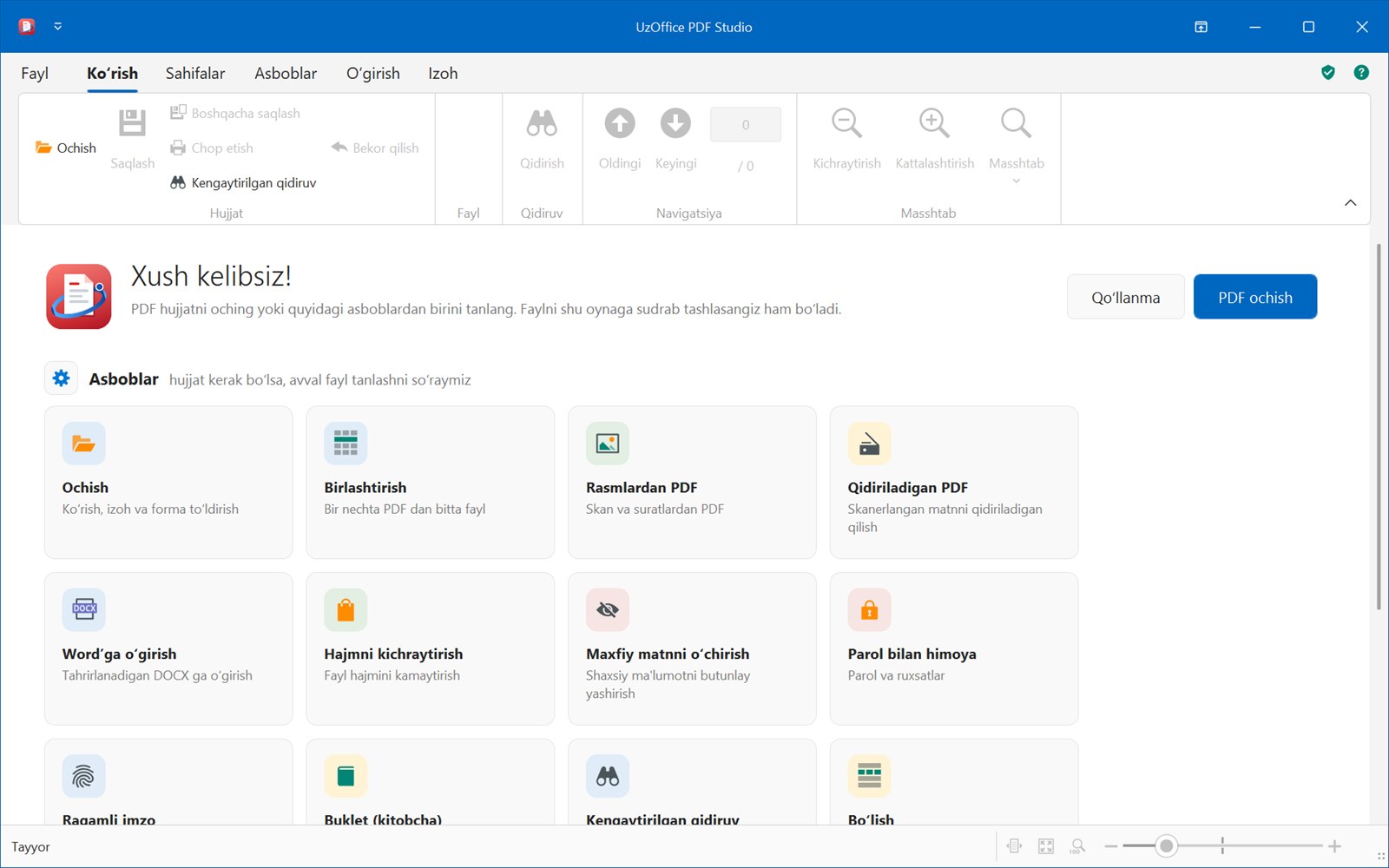
The window has three parts: the command ribbon at the top, the page thumbnails, bookmarks and comments panel on the left, and the document in the middle. The status bar at the bottom shows the current page, a zoom slider and messages about completed actions. With no document open, the start page shows recent files and cards for the main actions.
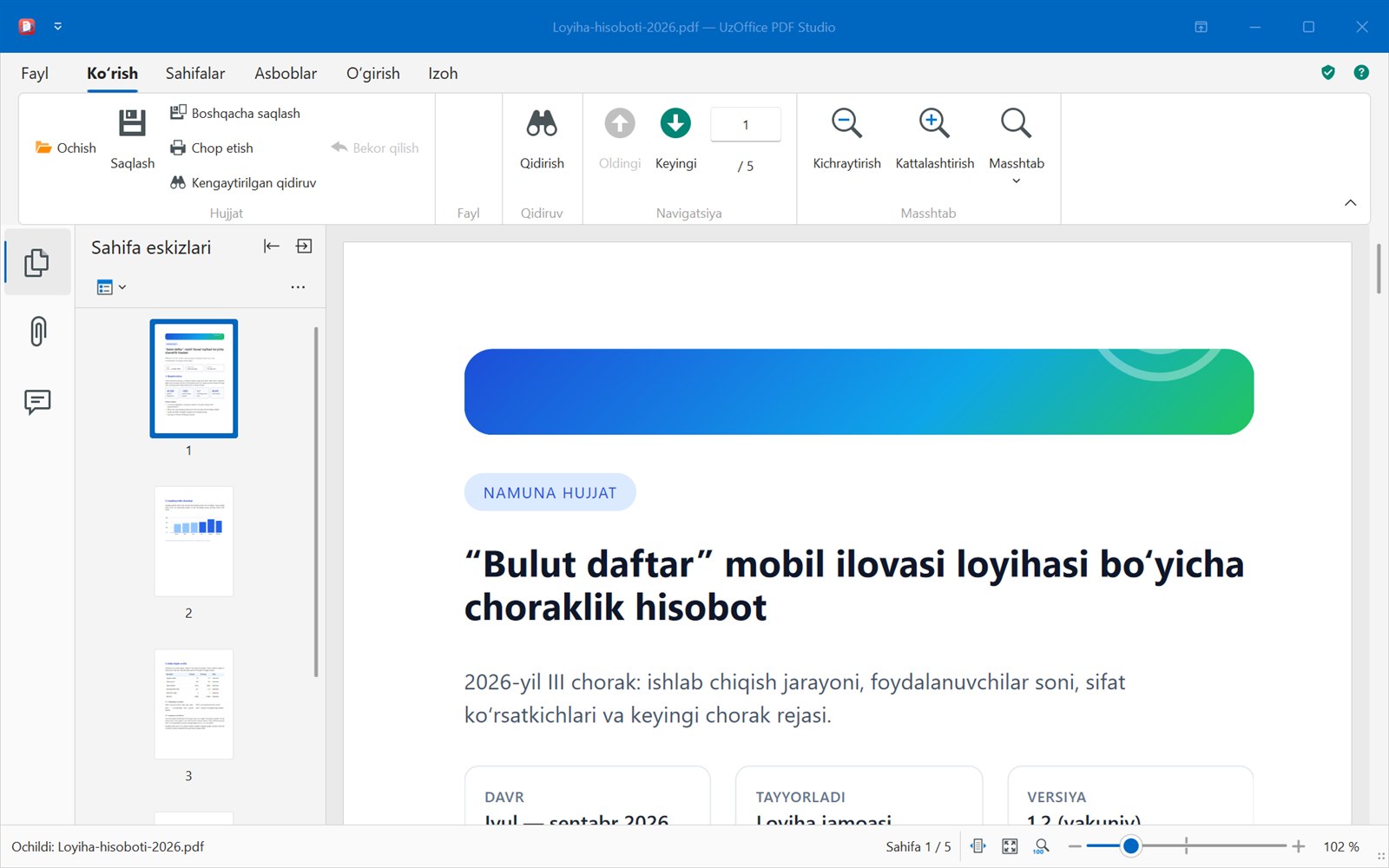
| Tab | What’s on it |
|---|---|
| File | Open, save, print, recent files, settings, licence, user guide and About. |
| View | Page navigation, search, zoom. |
| Comment | Highlight, underline and strikethrough, notes. |
| Pages | Rotate, delete, reorder, insert, split and merge, crop, publishing (booklets and more). |
| Tools | Watermark, page numbers, header & footer, password, digital signature, redaction, compression. |
| Convert | Searchable PDF (OCR), conversion to Word, images to PDF, export to images and text. |
Hover over any button to see a short tip and its keyboard shortcut. The detailed built-in guide opens with F1.
Opening and saving
- Ctrl+O or File → Open. Choosing an image (JPG, PNG, TIFF) creates a PDF from it.
- Drag a file into the window: one PDF opens, several PDFs open the merge dialog, images become a PDF.
- Recent files are on the start page and under File → Recent files. You can search them by name and pin the ones you need.
- Ctrl+S saves, Ctrl+Shift+S saves as. A “•” in the title means there are unsaved changes. The original file doesn’t change until you save.
Password-protected files ask for the password when opened. After page operations the document is saved without the password — if you still need protection, apply Protect with password again.
Viewing, zoom and search

- The status bar slider or Ctrl + mouse wheel zooms in and out. Ctrl+0 — fit page, Ctrl+1 — actual size, Ctrl+2 — fit width.
- F11 — full screen; exit with Esc or F11 again. F4 — show or hide the thumbnails panel.
- Ctrl+F — quick find; go to the next match with F3 or Enter.
Advanced search
Ctrl+Shift+F or View → Advanced search opens a panel on the right that lists every match with its surrounding text.
- Search the current document or all PDFs in a folder (including subfolders); results are grouped by file.
- Match case and Whole words only narrow the results.
- Click a result — the file opens if needed and that exact spot is highlighted.
A scanned PDF is an image, so search finds nothing in it. Run Searchable PDF first.
Comments and forms
- Select text with the mouse and choose highlight, underline or strikethrough on the Comment tab (Ctrl+Shift+H, U, K).
- A note can be placed anywhere on the page — open it and type.
- All comments are listed in the Comments section of the left panel: jump to a comment, reply, set its status or delete it.
- Fields in fillable PDF forms are filled in right in the app. Form data can be exported to a file and imported from one.
- Set the comment author name in File → Settings.
To stop others from changing comments and form fields, use Tools → Flatten — they become part of the page content.
Managing pages
Page operations apply to the pages selected in the thumbnails panel or, if nothing is selected, to the current page. To select several pages, click thumbnails with Ctrl (individually) or Shift (a range).

| Action | Details |
|---|---|
| Rotate left / Rotate right | By 90°; Ctrl+Shift+L / Ctrl+Shift+R. |
| Delete pages | Ctrl+Delete. |
| Move up / Move down | Change the page order. |
| Insert from file, Blank page, Image pages | Insert another PDF, a blank page or images where you need them (before, after, at the start or end). |
| Extract pages | Saves the selected pages to a separate PDF. |
| Split | Each page, every N pages or by ranges (e.g. 1-3, 4-10); files are written to the folder you choose. |
| Merge | Combines several PDFs into one document in the order you choose; Ctrl+Shift+M. |
| Crop | Trims extra margins and scanner borders. |
Undo any action with Ctrl+Z — the Undo button shows the name of the last action.
Tools

Watermark, page numbers, header & footer
- Watermark — a semi-transparent label such as “COPY” or “DRAFT”: size, color, opacity, angle, behind or over the text.
- Page numbers — format (e.g.
{0} / {1}), position, starting number, skipped first pages. - Header & footer — text in six positions at the top and bottom of the page;
{page},{pages},{date},{file}and{title}are filled in automatically.
Password and digital signature
- Protect with password — an open password and/or permissions for printing, copying, editing and commenting; AES-256 encryption. The protected copy is saved to a separate file. To remove protection, use Remove password (in a document opened with its password).
- Digital signature — sign the document with a certificate from the Windows certificate store or a PFX file. You can enter a reason, location and contact and show a signature mark on the page. Any change after signing invalidates the signature, so sign last.
A forgotten password can’t be recovered — neither the app nor support can help. Keep your password somewhere safe.
Redaction
Names, phone numbers, passport numbers and similar data are removed from the document completely: blacked out with a rectangle and deleted from the text layer, so they can’t be copied or found by search.
-
Open the tool
Optionally select the text, then click Tools → Redact.
-
Specify what to remove
Enter texts one per line and/or tick the ready-made patterns: email, phone, passport, personal ID number (JShShIR), bank card.
-
Check and apply
First check how many matches are found, then click OK. Save the result under a new name with Save As so the original stays intact.
Compression
Tools → Compress slims down large scans and photo-heavy PDFs for email or messengers. Levels: high quality, balanced, small, smallest or custom. Images are re-compressed; text and lines stay unchanged. The result appears in the status bar (e.g. “8.3 MB → 1.1 MB”). Not happy? Undo with Ctrl+Z and try another level.
Other tools
Properties (Ctrl+D) — the document’s title, author and other details. Images to PDF — combines several images into a PDF in your order, at image size or in a format such as A4. Export to images — pages to PNG, JPEG or multi-page TIFF (with a choice of resolution); Export text — all text to a .txt file.
Printing
Ctrl+P or File → Print. The right side of the dialog previews the paper output, and every setting updates the preview immediately.
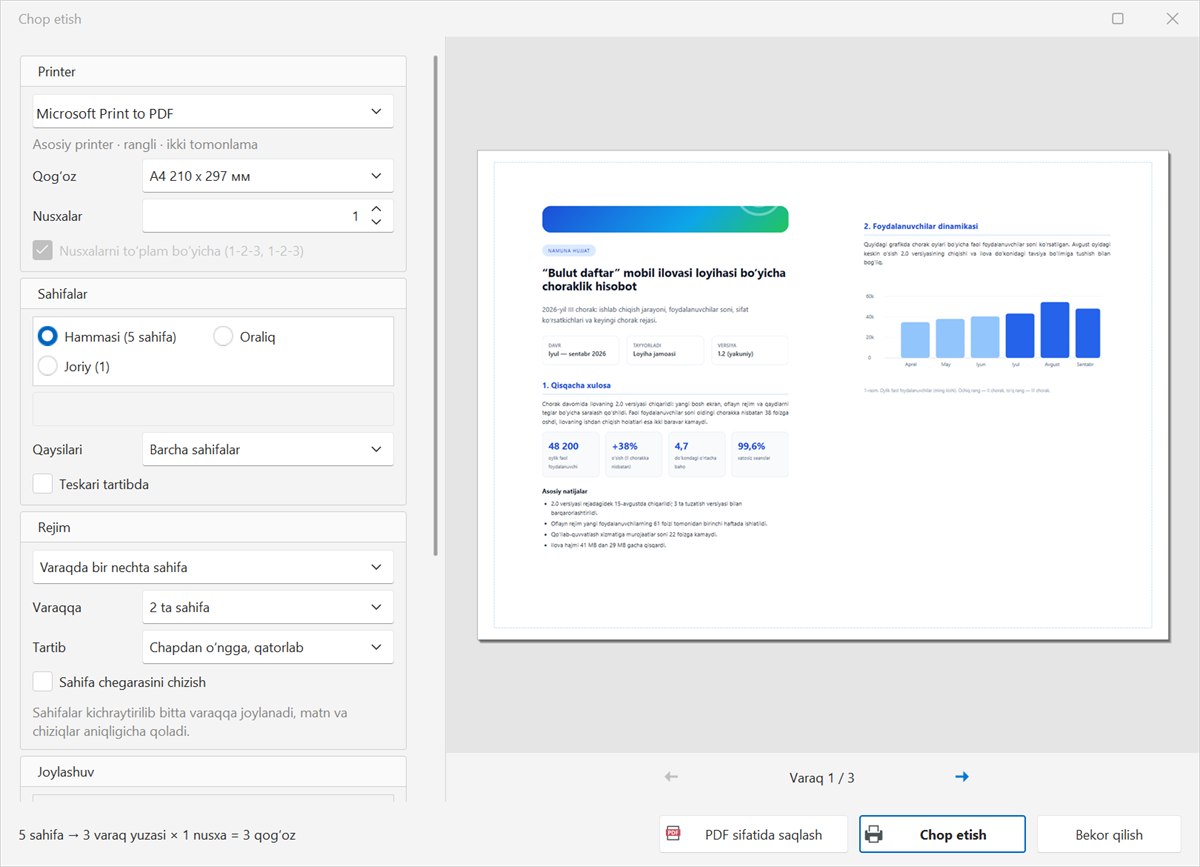
- Printer, paper size, number of copies.
- Pages: all, current, selected or a range; odd or even only, reverse order.
- Layout: fit to paper, actual size or a percentage; orientation — auto, portrait or landscape.
- Duplex (if the printer supports it), grayscale, print comments.
Booklets, pages per sheet, posters
Via Mode in the print dialog or Pages → Publishing:
- Booklet
- Two pages per sheet, in the right order once folded. Thick documents can be split into signatures. On a duplex printer, short-edge flipping is selected automatically.
- Pages per sheet
- 2, 4, 6, 8, 9 or 16 pages on one sheet to save paper; order and borders are configurable.
- Poster
- The page is enlarged and printed across several sheets, with overlap and cut marks for assembly.
Pages are placed as vectors, so no quality is lost. Save as PDF writes the imposed sheets to a separate file for a print shop.
Text recognition (OCR) and conversion to Word
Text in a scanned PDF can’t be copied or searched. Two commands on the Convert tab fix that:
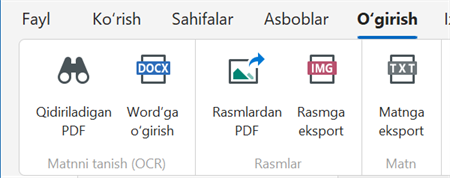
- Searchable PDF (Ctrl+Shift+O)
- The pages look the same but get an invisible text layer, so the text can be searched, selected and copied. The result replaces the current document.
- To Word (Ctrl+Shift+W)
- The PDF becomes an editable Word (DOCX) document in the original layout: tables, frames, bold text, emblems and stamps are kept. The file is saved and you’re offered to open it in Word.
-
Choose the command
Open the document and click Searchable PDF or To Word on the Convert tab.
-
Pick pages and script
Select the pages and the script: Detect automatically, Latin or Cyrillic. The dialog shows your limit for the current month.
-
Click “Start”
The file uploads and progress is shown in percent; you can stop it if needed.
Internet and an active licence required
Recognition runs on the UzOffice server. Limits are the same as on the website and in the Word add-in, and shared with them; text (digital) PDF pages don’t count. Details: OCR limits, tips for better results.
Licence
PDF Studio shares one licence with the UzOffice Office add-ins (Word, Excel, PowerPoint). If the add-in is already activated on this computer, there’s nothing to do in PDF Studio — the licence is picked up automatically.
-
Open the licence page
File → License shows the status, expiry date and plan.
-
Enter your key
Click Activate and enter the licence key created in your account on the website. See Activating the licence for how to get a key. All UzOffice apps on one computer count as a single device.
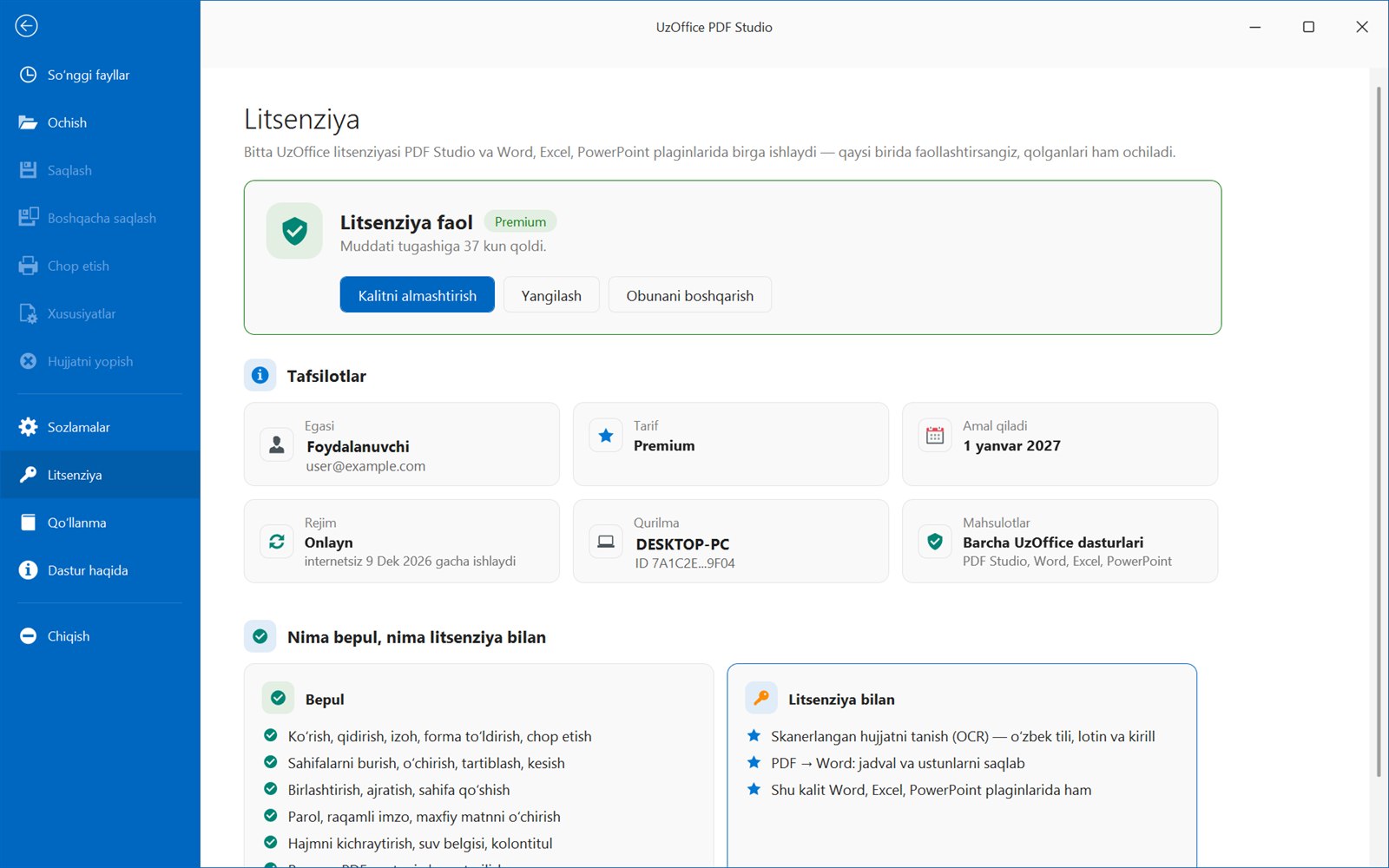
If you’ve renewed your subscription or changed plans, update the status with Refresh on the licence page.
Settings and language
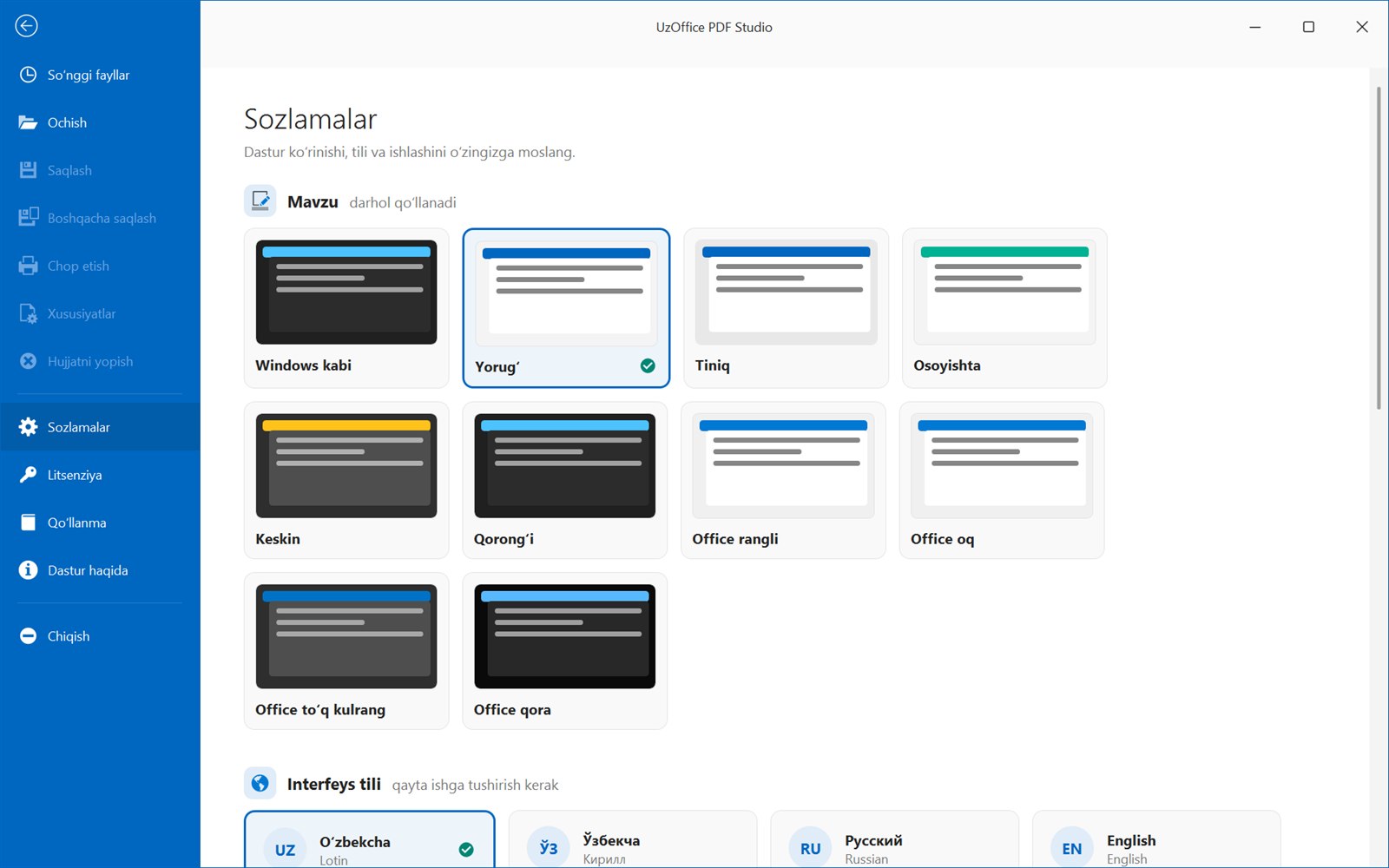
File → Settings (Ctrl+K):
- Theme — several light and dark themes; Use Windows setting follows the system light/dark mode. Applies instantly.
- Interface language — Oʻzbekcha (Latin), Ўзбекча (Cyrillic), Русский, English. Changing the language restarts the app and reopens the open file.
- View — zoom when a document opens, ribbon layout (classic or simplified), thumbnails panel, reopening the last file on start-up.
- Performance — hardware-accelerated rendering and animations. Turn them off if you see screen glitches or work over Remote Desktop.
- Comment author — the name shown on your comments.
Updates
PDF Studio checks for new versions by itself: shortly after it starts and then once a day. When a new version is out, New version appears in the status bar.
- With automatic installation on (the default), the update downloads in the background and installs silently when you close the app. Your work is not interrupted, and the app opens in the new version next time.
- To update right away, open File → About → Updates and click Restart and update. If you have unsaved changes, you’ll be asked to save them first.
- With automatic installation off, the update is only offered; install it with Download and install.
- Check for updates checks manually at any time.
Turn automatic installation on or off in File → Settings → Install updates automatically.
The app installs only updates downloaded from the UzOffice server whose MIMAX SOFTWARE GROUP signature checks out. If the signature doesn’t match, the file is deleted and not installed. Updating doesn’t touch your license or settings.
If several PDF Studio windows are open, the update installs after the last one is closed.
Keyboard shortcuts
The full list is in the app: Ctrl+/. The most useful ones:
| Keys | Action |
|---|---|
| Ctrl+O / Ctrl+S / Ctrl+Shift+S | Open / save / save as |
| Ctrl+P | |
| Ctrl+W | Close document |
| Ctrl+F / Ctrl+Shift+F | Quick find / advanced search |
| Ctrl+G | Go to page |
| Ctrl+0 / 1 / 2 | Fit page / actual size / fit width |
| F4 / F11 | Thumbnails panel / full screen |
| V / H / Z | Select tool / hand tool / marquee zoom |
| Ctrl+Shift+L / R | Rotate page left / right |
| Ctrl+Delete | Delete pages |
| Ctrl+Shift+E / M | Extract pages / merge |
| Ctrl+Shift+O / W | Searchable PDF / to Word |
| Ctrl+Z | Undo |
| F1 | User guide |
Troubleshooting
The update won’t install
Close all PDF Studio windows — the update installs after the last window closes. If the error persists, download the installer and install over the current version: your files, license and settings are kept.
A file won’t open
It may be damaged or locked by another program. Close that program and try again, or open a copy of the file.
Search and copy don’t work
The document is scanned — its pages are images. Run Searchable PDF.
OCR or Word conversion fails
Check your internet connection, licence status and monthly limit (File → License → Refresh). If the licence was activated without a key (offline), server features aren’t available — activate it with a key. Remove the password from protected PDFs first.
The app is slow or the screen shows glitches
Try toggling hardware-accelerated rendering in Settings → Performance. For very large files, close the thumbnails panel (F4).
The installer says .NET Framework 4.8 is required
Install .NET Framework 4.8 from the official Microsoft website and run the installer again. Installing Windows updates usually solves this too.
If the problem persists, message @uzoffice_supportbot on Telegram and attach the error log from the About page.