
What OCR does
A scanned document or a phone photo is just an image: you can’t copy, search or edit the text in it. OCR (optical character recognition) finds the letters in the image and turns them into ordinary, editable text. Recognition in UzOffice is tuned for Uzbek: it reads both Latin and Cyrillic, automatically restores lost q, gʻ, oʻ and h letters, and joins words hyphenated at line ends.
- Supported files
- PDF, PNG, JPG, TIFF, BMP
- Document script
- Latin, Cyrillic or automatic detection
- Output
- on-screen text, TXT, DOCX in the original layout, searchable PDF, or a new document in My documents
- Where it runs
- on the UzOffice server — nothing to install on your computer
You can use OCR in four places:
Recognizing a file
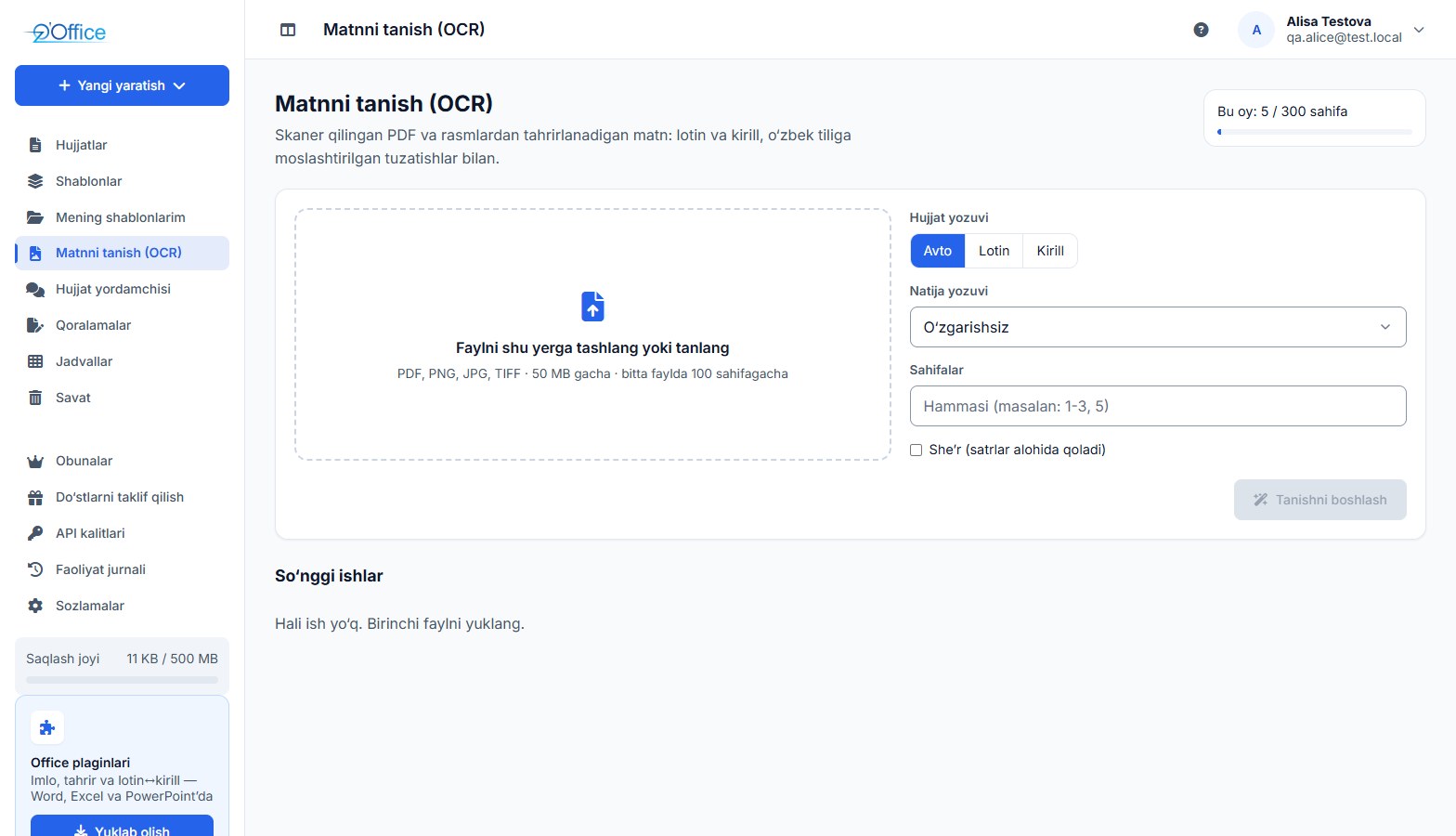
-
Open the section
Sign in and choose Text recognition (OCR) in the left menu. The top-right corner shows your limit for the current period, e.g. “This month: 12 of 300 pages”.
-
Choose a file
Drag the file into the frame, or click the frame to pick it. Below it you’ll see your plan’s file size and pages-per-file limits.
-
Pick the settings
Usually nothing needs changing: the script is detected automatically and all pages are recognized. Each setting is explained below.
-
Click “Recognize”
The file uploads and appears under Recent jobs. The status updates by itself: “Queued” → “Recognizing: 3 of 10” → “Done”. You can close the page — the job keeps running and you can open the result later.
-
Open the result
Click Open next to a finished job. A queued or running job can be Cancelled; to Delete a job, click the button twice (the second click confirms).
One job runs at a time (two on the Enterprise plan). If the previous one hasn’t finished, you’ll see “Your previous job is still running” — wait for it to complete.
Settings
- Document script
- Auto — the script is detected automatically (mixed documents too). If you know the document uses only one script, choose Latin or Cyrillic for slightly better accuracy.
- Result script
- As recognized — the text stays in the document’s script. Choose Latin or Cyrillic to convert the recognized text right away — for example, get Latin text from a Cyrillic scan.
- Pages
- Leave empty for all pages. To recognize only some, list them with commas and ranges with a hyphen:
1-3, 5means pages 1, 2, 3 and 5. Only the selected pages count toward your limit. - Poetry (keep lines separate)
- Short lines are normally merged into paragraphs. Tick this for poems, song lyrics and lists so each line stays on its own.
Viewing the result
The result page has two parts: the original page on the left and the recognized text on the right. Move between pages with the arrows above the image.
- Word boxes — every recognized word is outlined on the original page. Doubtful words are colored: Low confidence and Corrected (changed automatically). Compare them with the image.
- Original layout — text is placed as on the page: tables, frames, columns, bold text and alignment are kept. Plain text — just text with paragraphs, handy for copying.
- Raw OCR (no corrections) — shows the result before automatic corrections. Useful for spotting a correction that went wrong.
- The Automatic corrections panel lists changed words; the Warnings panel flags issues such as low-quality pages.
- Copy puts the whole text on the clipboard.
The overall “Confidence” percentage in the header gives a rough idea of accuracy: if it’s low, check the result carefully.
Downloading and saving
| Button | What you get |
|---|---|
| TXT | A plain text file without formatting. |
| DOCX | A Word document in the original layout: tables and frames, bold text, font sizes, columns, headers, footers and page numbers. Stamps, emblems, signatures and pictures are placed where they were, as images. |
| A searchable PDF: pages look exactly like the original but get an invisible text layer, so you can search, select and copy the text. | |
| Open in editor | Saves the text to My documents as DOCX and opens it straight away in the UzOffice text editor. It is kept like any of your other documents. |
On complex pages (diagrams, large tables, mixed columns) the DOCX may differ slightly from the original. For an official document, review the result and fix it in Word or the editor if needed.
Text-based (digital) PDFs
Not every PDF is a scan. A PDF saved from Word or another program already contains text — a text layer. Such pages are read directly from the text layer, without OCR: the text and fonts are exact and the job finishes faster.
Not counted toward your limit
Pages taken from the text layer don’t count toward your plan limit. The result page shows “… pages were taken from the PDF text layer”. If a file mixes scanned and text pages, only the scanned ones count.
If the text layer is broken (for example, old fonts show symbols instead of letters), the system notices and recognizes the page with regular OCR.
Limits
The limit is the number of recognized pages. It resets every month (during the trial — for the trial period). Your current usage is shown at the top of the Text recognition (OCR) page.
| Who | Pages | Per file | File size |
|---|---|---|---|
| Not signed in (public page) | 1 per day | 1 page (first page of a PDF) | up to 5 MB |
| Registered, no subscription | 10 per month | 5 pages | up to 10 MB |
| Free — 7-day trial | 30 during the trial | 10 pages | up to 10 MB |
| Standard | 300 per month | 100 pages | up to 50 MB |
| Premium | 1,000 per month | 300 pages | up to 100 MB |
| Enterprise | 3,000 per month | 500 pages | up to 200 MB |
- Yearly versions of the plans have the same limits as the monthly ones.
- Jobs on higher plans are processed earlier in the queue, with Enterprise jobs first. This makes a difference under heavy load.
- The limit is checked on submission: if you select more pages than you have left, the job is rejected. Reduce the number of pages.
- A job that fails isn’t charged. A cancelled job counts only the pages recognized before cancellation.
- Pages recognized via the Word add-in and PDF Studio come out of the same shared limit.
To raise your limit, upgrade your plan — see Plans and subscriptions. Current terms are in the pricing table.
How long files are kept
The uploaded file and the recognition result are kept for 30 days and then deleted automatically. The exact date is shown on the result page: “Files are kept until …”. Download what you need within that time, or save it to My documents with Open in editor — documents saved there are not deleted.
You can also delete a job earlier from the Recent jobs list. On the public page (without signing in) neither the file nor the text is stored.
Tips for better results
- Scan at 300 dpi. Choose 300 dpi when scanning (400 for small print). At very low resolution letters run together.
- Keep pages straight. The system fixes a slight tilt or an upside-down page by itself, but strong skew, folds and shadows hurt the result.
- Contrast. Text should stand out clearly from the background. For colored backgrounds or faded copies, try the scanner’s black-and-white or grayscale mode.
- Phone photos — shoot in good light, from straight above, with the page filling the frame; avoid flash glare.
- Set the script. If the document is only Cyrillic or only Latin, choose it under Document script.
- Don’t turn a digital PDF into an image. Upload the original PDF — its text layer is more accurate and doesn’t count toward your limit.
Text from scans in the Word add-in
The UzOffice Word add-in can turn a scanned PDF or image into a Word document without visiting the website. The result is the same as the website’s DOCX: tables, frames, bold text, emblems and stamps keep their original look.
-
Open the window
On the Matn tahriri tab, in the Hujjat (Document) group, click
 Skanerdan matn (Text from scan).
-
Choose a file
Drag the file into the window or click the frame to pick it. If needed, set Sahifalar (Pages, e.g.
1-3, 5) and Yozuv (Script: Oʻzi aniqlansin — automatic, Lotin, Kirill). The window also shows your remaining limit. -
Choose where the result goes
Yangi hujjat (New document) — the result opens in a separate new document. Joriy hujjatga, kursor joyiga (Into the current document, at the cursor) — it’s inserted into your open document where the cursor is.
-
Click “Boshlash” (Start)
The file uploads, then progress appears, e.g. “Tanilmoqda: 2 / 5 sahifa”. You can keep working in Word meanwhile; to stop, click Bekor qilish (Cancel).
Internet and a licence required
Recognition runs on the UzOffice server, not on your computer — so the add-in stays lightweight, but it needs an internet connection. The button appears once the licence is activated (Activating the licence). Limits are the same as on the website and shared with it: pages recognized in the add-in come out of your plan limit, and the job also appears under Recent jobs on the website.
Troubleshooting
“The PDF is password-protected”
The server can’t open a password-protected PDF. Open the file in a PDF viewer with its password and save an unprotected copy (for example, Remove password in PDF Studio), then upload that copy.
“Up to … pages per file”
The file exceeds your plan’s per-file limit. Enter part of it in the Pages field (e.g. 1-100) and send the rest as another job (101-200). Text pages of a PDF don’t count toward this limit.
“Not enough pages left” or “Today’s free limit is used up”
You’ve used up the pages for this period. Select fewer pages, wait for next month or upgrade your plan. Without signing in the limit is 1 page a day; after signing up you get 10 pages a month for free.
“OCR is not included in your plan”
Your current plan doesn’t include recognition. Use the Upgrade plan link to choose a plan with OCR.
“The file is too large” or “Unsupported file type”
If the file exceeds your plan’s size limit, split the pages you need into a separate PDF or rescan at 300 dpi. Only PDF, PNG, JPG, TIFF and BMP are accepted; convert phone formats such as HEIC to JPG first.
Lots of errors, low confidence
The usual cause is scan quality: low resolution, a faded or skewed page, shadows. Rescan following the tips. Set the Document script explicitly and check the Warnings panel, which names low-quality pages. Handwriting is not recognized well.
“OCR is temporarily unavailable”
The service is under maintenance. Please try again a little later. If the problem persists, message @uzoffice_supportbot on Telegram.