

The buttons described here appear once the licence is activated. Don't see them yet? See Activating the licence.
Convert a whole document
The buttons in the Yozuvni oʻgirish (Convert script) group switch the entire document to another script in one click: body text, headings, tables, headers and footers, notes and text boxes. Fonts, bold, sizes, alignment and other formatting stay the same.
-
Open the document
Open the document in Word. If you need to keep the original, save a copy under another name first.
-
Choose the direction
On the Matn tahriri tab click:
 Lotin → Kirill — Latin to Cyrillic. The add-in detects whether the text is in the current or the new Latin alphabet.
 Kirill → Lotin — to the current Latin script (O‘, G‘, Sh, Ch). Text in the new Latin alphabet is also converted to current Latin.
-
Close the message
Click OK in the “✅ Hujjat toʻliq oʻgirildi.” (Document fully converted) message.
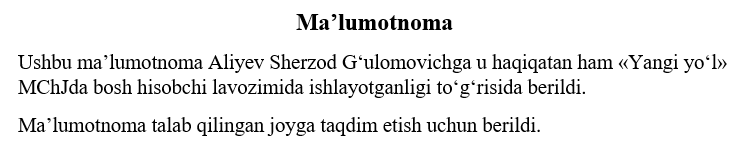
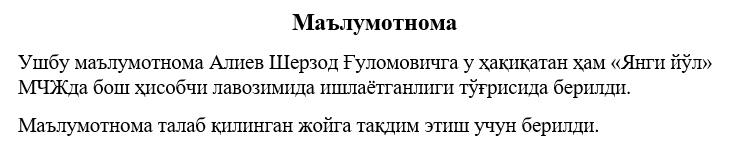
Conversion rules
- To Cyrillic, letter combinations such as
sh,ch,o‘,g‘,ya,yobecome single letters (ш,ч,ў,ғ,я,ё) and the tutuq (glottal stop) becomesъ:Ma’lumotnoma→Маълумотнома. - To Latin,
o‘,g‘and the tutuq are written with the exact characters the spelling dictionary expects, so converted text doesn't show up as misspelled. - In Latin text, «…» quotation marks become “…”:
«Янги йўл»→“Yangi yo‘l”.
Don't like the result?
Press Ctrl+Z once — the whole conversion is undone as a single step and the document is back as it was.
Convert part of the text
The ribbon buttons convert the whole document. To convert just a word, a sentence or a paragraph, use the right-click menu.
-
Select the text
Select the part you want to convert.

The second paragraph is selected. -
Right-click
Right-click on the selected text.
-
Choose the direction
Pick one of the items at the top of the menu:
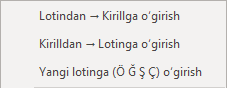
Conversion items in the right-click menu. - Lotindan → Kirillga oʻgirish — selected Latin text to Cyrillic;
- Kirilldan → Lotinga oʻgirish — selected Cyrillic text to current Latin;
- Yangi lotinga (Ö Ğ Ş Ç) oʻgirish — selected text to the new Latin alphabet.
Whichever script dominates the selection is offered first. The items appear only when text is selected, and not at all in documents protected from editing. This conversion is also undone with a single Ctrl+Z.
The new Latin alphabet (Ö, Ğ, Ş, Ç)
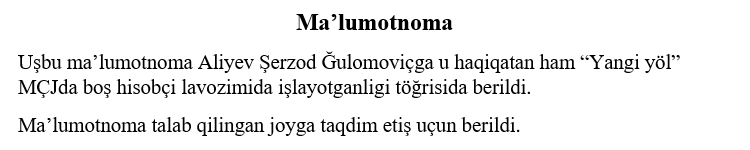
 Yangi lotin (New Latin) switches the document to the new Uzbek Latin alphabet:
 O‘ → Ö, G‘ → Ğ, Sh → Ş, Ch → Ç. The source can be Cyrillic or current Latin — the add-in detects it. The tutuq and spelling rules don't change; formatting is kept.
| Current Latin | New Latin |
|---|---|
Sherzod G‘ulomovichga | Şerzod Ğulomoviçga |
«Yangi yo‘l» MChJda | “Yangi yöl” MÇJda |
to‘g‘risida | töğrisida |
taqdim etish uchun | taqdim etiş uçun |
Spell-checking adapts automatically: if the spelling alphabet is set to Joriy lotin (current), it switches to Yangi lotin after the conversion — otherwise almost every word would be underlined. Word's status bar tells you about it:

It works the other way too: converting a new-Latin document back with Kirill → Lotin returns the spelling alphabet to Joriy lotin. If Ikkala alifbo (both) is selected, the add-in leaves it alone.
Spell-checking
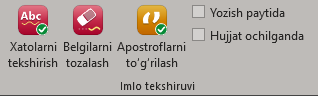
The add-in checks Uzbek words in both Latin and Cyrillic. A misspelled word gets a red wavy underline, and the right-click menu offers corrections. Checking also works inside tables and text boxes.
Check a document
-
Click Xatolarni tekshirish
Click
 Xatolarni tekshirish (Check for errors). The status bar shows “Imlo tekshirilmoqda…” (checking spelling).
 -
Wait for the result
A few seconds later the status bar shows “Imlo tekshiruvi yakunlandi: … ta xato soʻz belgilandi.” (… misspelled words marked) or “✅ Imlo xatosi topilmadi.” (no spelling errors found).

“topshirldi” and “shaxrida” are marked as misspelled. -
Fix the error
Right-click the underlined word and pick the correct suggestion — the word is replaced and the underline disappears.
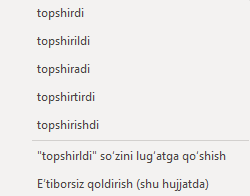
Right-clicking “topshirldi”: suggestions, add to dictionary and ignore.
| Menu item | What it does |
|---|---|
A suggestion (e.g. topshirildi) | Replaces the word with that suggestion. |
| "…" soʻzini lugʻatga qoʻshish (Add “…” to dictionary) | Saves the word to your personal dictionary on this computer, so it isn't underlined in other documents either. |
| Eʼtiborsiz qoldirish (shu hujjatda) (Ignore in this document) | Removes the underline in this document only; nothing is added to the dictionary. Lasts until Word is closed. |
| (Toʻgʻri variant topilmadi) (No suggestions found) | No similar word in the dictionary. Check the word or add it to the dictionary. |
The word is correct but marked as wrong
Surnames, organisation names or special terms may be missing from the dictionary. Choose "…" soʻzini lugʻatga qoʻshish in the menu — the status bar confirms “✅ "…" lugʻatga qoʻshildi.” (added to the dictionary). The personal dictionary is stored in %APPDATA%\UzOfficeAddIn\dictionaries and survives updates and reinstalls.
Other common causes: a wrong apostrophe (fix apostrophes) or a spelling alphabet that doesn't match the document. A word that exists in the dictionary can still be underlined if it is used incorrectly — for example “qat’iy nazar” (correct: “qat’i nazar”); the menu then suggests the right form.
Clear the red underlines
 Belgilarni tozalash (Clear marks) removes all red underlines from the document. To check again, click Xatolarni tekshirish. For a single word, right-click it and choose Eʼtiborsiz qoldirish (shu hujjatda).
The red underlines are on screen only
They are not written into the document: they aren't saved to the file, don't print or appear in PDFs, and aren't visible when the document is opened on another computer. Clearing them doesn't touch the text or mark the document as changed, and Ctrl+Z doesn't bring them back — it only undoes your own edits.
Automatic checking
Two checkboxes in the Imlo tekshiruvi group control when checking runs by itself. Your choice is remembered.
- Yozish paytida (While typing)
- Every word is checked as you type. On by default. Turning it off also removes the underlines added while typing — use Xatolarni tekshirish to check manually.
- Hujjat ochilganda (On open)
- The whole text is checked as soon as a document opens. Off by default, because it can slow down opening large documents.
To avoid two kinds of red underlines at once, the add-in turns off Word's own “check spelling and grammar as you type” while it is running.
Spelling alphabet
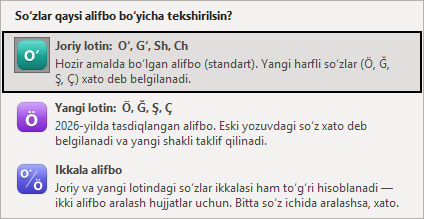
Uzbek Latin currently has two alphabets: current (O‘, G‘, Sh, Ch) and new (Ö, Ğ, Ş, Ç). The button in the Imlo: lotin alifbosi group chooses which one Latin words are checked against. It has no effect on Cyrillic text.
| Option | When to use it |
|---|---|
 Joriy lotin (current, default) Joriy lotin (current, default) | The alphabet in use today. Words with the new letters (Ö, Ğ, Ş, Ç) are marked as errors. |
 Yangi lotin (new) Yangi lotin (new) | The alphabet approved in 2026. Words in the old spelling are marked and the new form is suggested. |
 Ikkala alifbo (both) Ikkala alifbo (both) | For mixed documents: words in either alphabet are accepted. Mixing both alphabets inside one word is an error. |
For example, Toshkent is correct with Joriy lotin or Ikkala alifbo, while Toşkent is correct with Yangi lotin or Ikkala alifbo. Your choice is remembered and the button label shows the current mode. Changing the mode re-checks the open document.
Fixing apostrophes
Uzbek Latin uses two special characters that aren't on the keyboard, so texts end up with a mix of ', `, ‘ and ’.  Apostroflarni toʻgʻrilash (Fix apostrophes) replaces all of them with the correct character.
| Where | Character used |
|---|---|
After o or g | ʻ U+02BB — the mark of the letters o‘ and g‘: Oʻzbekiston, bogʻ |
| Everywhere else | ʼ U+02BC — the tutuq and the suffix separator: maʼlumot, sanʼat, Wordʼga |
-
Click the button
Click Apostroflarni toʻgʻrilash. The whole document, tables included, is processed and formatting is kept.
-
Review the result
A message shows how many characters were replaced — click OK.


The button replaces every apostrophe and single quotation mark in the document — English or Russian passages and '…'-style quotes change too. Review such documents afterwards; if needed, a single Ctrl+Z reverts everything.
Spell-checking also accepts the ‘ and ’ that Word inserts automatically when they are in the right place. A keyboard ' or a character in the wrong place is underlined — in that case click this button.
Undo (Ctrl+Z)
Every add-in action — converting the document, converting a selection, fixing apostrophes — is recorded in Word's history as one step. If you don't like the result, press Ctrl+Z once or use Word's Undo button.
Red spelling underlines are not part of the document history, so Ctrl+Z neither restores nor removes them.
Tips
- Keyboard access. Press Alt, then U, Z — the Matn tahriri tab opens and letters appear over the buttons. For example: L, K — Lotin → Kirill; K, L — Kirill → Lotin; Y, L — Yangi lotin; I, T — Xatolarni tekshirish; A, P — Apostroflarni toʻgʻrilash.
- Apostrophes first, then spelling. For Latin text from other sources, click Apostroflarni toʻgʻrilash first — spell-checking then won't report needless errors.
- Keep the original. Save a copy of an important document before converting it — you may need both versions.
- Large documents. For documents with hundreds of pages, keep Hujjat ochilganda off and run the check manually when needed.
- Built-in guide.
 Qoʻllanma (Guide) opens a short manual without leaving Word.