

The PowerPoint add-in is installed by the same installer as the Word and Excel add-ins and uses the same licence. Not installed yet? See Installing the add-ins. If you have already activated it in Word or Excel, there is nothing to activate in PowerPoint.
What the add-in does in PowerPoint
The add-in adds the same Matn tahriri (“Text editing”) tab to the PowerPoint ribbon as in Word and Excel. It converts presentations from Latin to Cyrillic and back, moves them to the new Latin alphabet, checks Uzbek spelling on slides and fixes apostrophes. The conversion rules and the spelling dictionary are exactly the same as in the Word add-in.
The add-in’s interface is in Uzbek (Latin script) in every language version of Office. Below, button names are shown as they appear in PowerPoint, with an English translation in brackets.
The Matn tahriri tab in PowerPoint
Open PowerPoint and select the Matn tahriri tab on the ribbon:

| Group | Button | What it does |
|---|---|---|
| Yozuvni oʻgirish (Convert script) |  Lotin → Kirill Lotin → Kirill | Converts the text in the chosen scope from Latin to Cyrillic. |
 Kirill → Lotin Kirill → Lotin | Converts to the current Latin alphabet (O‘, G‘, Sh, Ch). | |
 Yangi lotin Yangi lotin | Moves the text to the new Latin alphabet (Ö, Ğ, Ş, Ç). | |
| Scope menu (Butun taqdimot) | Chooses what the buttons act on: Belgilangan (selection), Joriy slayd (current slide) or Butun taqdimot (whole presentation); the Izohlarni (Notes) ham (include notes) option is here too. | |
 Apostroflarni toʻgʻrilash Apostroflarni toʻgʻrilash | Replaces assorted apostrophes with the correct Uzbek characters. | |
| Imlo tekshiruvi (Spell check) |  Xatolarni tekshirish Xatolarni tekshirish | Highlights misspelled words in the presentation on the slide. |
 Belgilarni tozalash Belgilarni tozalash | Removes all marks in this presentation. Does not touch the text. | |
| Keyingi xato (Next error) | Selects the next misspelled word on its slide and tells you the total number of errors. | |
| Birma-bir tuzatish (One by one) | Reviews misspelled words one at a time in a separate window. | |
| Belgi rangi (Mark colour) | Qizil (red, default) or Sariq (yellow). | |
| Yozish paytida (While typing) | Errors are marked as you type into a shape or table. On by default. | |
| Hujjat ochilganda (On open) | Checks the whole presentation as soon as it opens. Off by default. | |
| Alphabet menu (Joriy lotin) | Which alphabet Latin words are checked against: Joriy lotin (current), Yangi lotin (new) or Ikkala alifbo (both). | |
| Yordam · v… (Help) |  Yangilanishni tekshirish Yangilanishni tekshirish | Checks for a new version. |
 Qoʻllanma Qoʻllanma | Opens the built-in guide to the PowerPoint add-in. | |
 Fikr bildirish Fikr bildirish | Send us a suggestion or a bug report. | |
| Litsenziya |  Litsenziya Litsenziya | Licence status and activation window. Shared with Word and Excel. |
Unlike Excel, PowerPoint has no separate Undo button — it isn’t needed: PowerPoint keeps the add-in’s changes in its own Ctrl+Z history (details).
Only Yordam and Litsenziya visible?
The licence is not activated yet or has expired. Activate it — the buttons appear straight away. If you activated in Word or Excel, the buttons appear in PowerPoint as soon as you switch slides or windows.
Converting a presentation
-
Choose the scope
In the scope menu of the Yozuvni oʻgirish group, choose what to convert (details in the next section). The default is Butun taqdimot (whole presentation). Your choice is remembered.
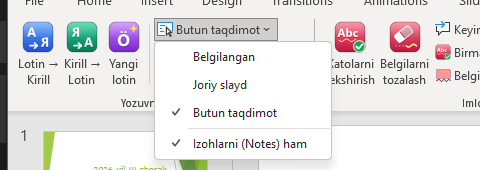
The scope menu. -
Click a direction button
Lotin → Kirill, Kirill → Lotin or Yangi lotin. Lotin → Kirill detects on its own whether the text is in the current or the new Latin alphabet. -
Check the result
A short message appears at the bottom of the window: how many slides and text blocks were changed. Not happy with it? Press Ctrl+Z once.
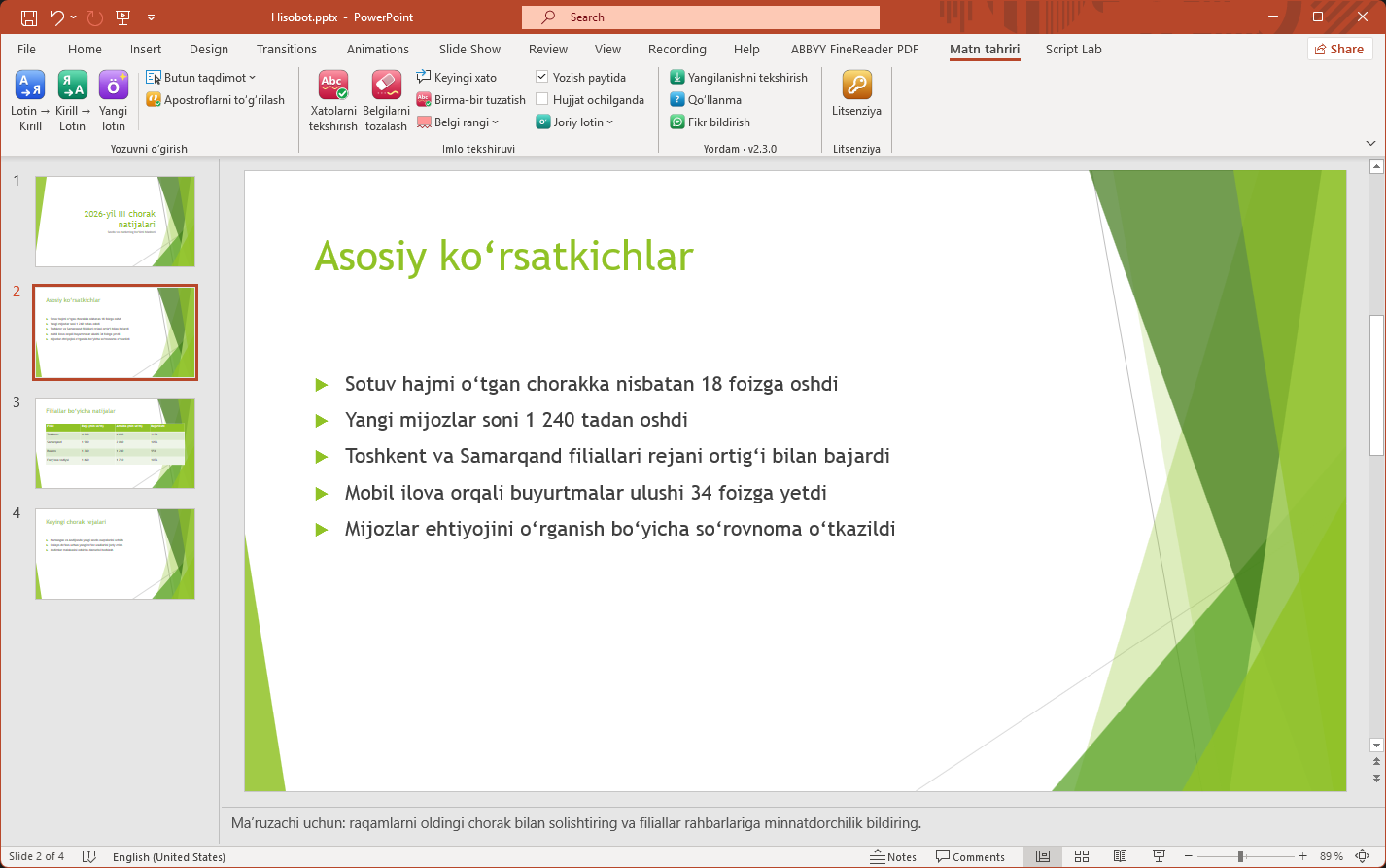
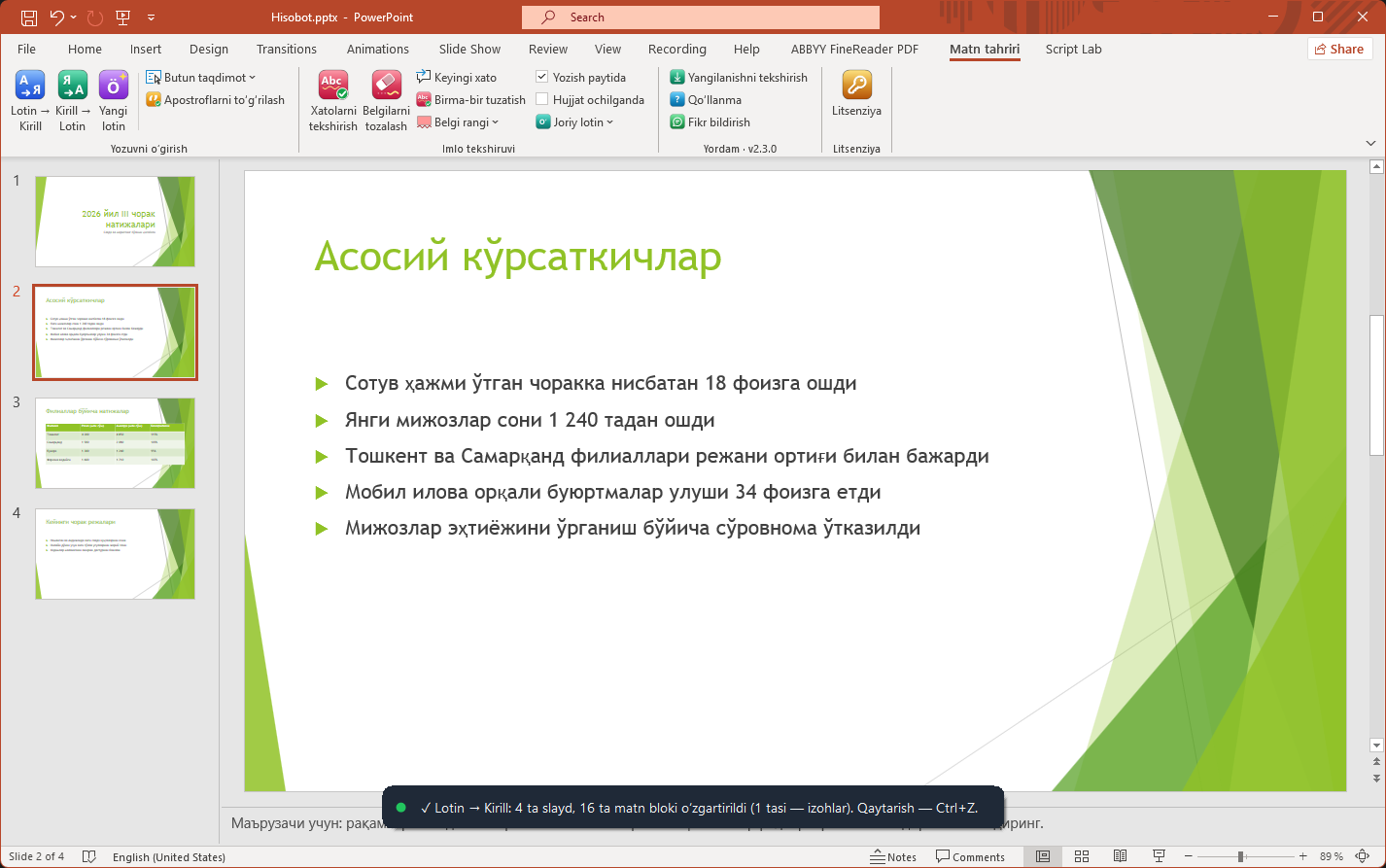
The language of the converted text is also set to Uzbek (Cyrillic or Latin). Otherwise PowerPoint would treat Cyrillic text as Russian and flag it in its own proofing.
Scope: what gets converted
| Choice | What is converted |
|---|---|
| Belgilangan (selection) | The selected piece of text, the selected shapes (including those inside groups and tables) or the slides selected in the thumbnail pane on the left. If nothing is selected — the current slide. |
| Joriy slayd (current slide) | All text on the open slide: titles, text boxes, shapes, groups, tables, SmartArt. |
| Butun taqdimot (whole presentation, default) | All slides, hidden slides included. |
Speaker notes
When Izohlarni (Notes) ham is ticked (default), the speaker notes under each slide are also converted and spell-checked, so notes don’t get left behind in the old script. Untick it if the notes should stay as they are.
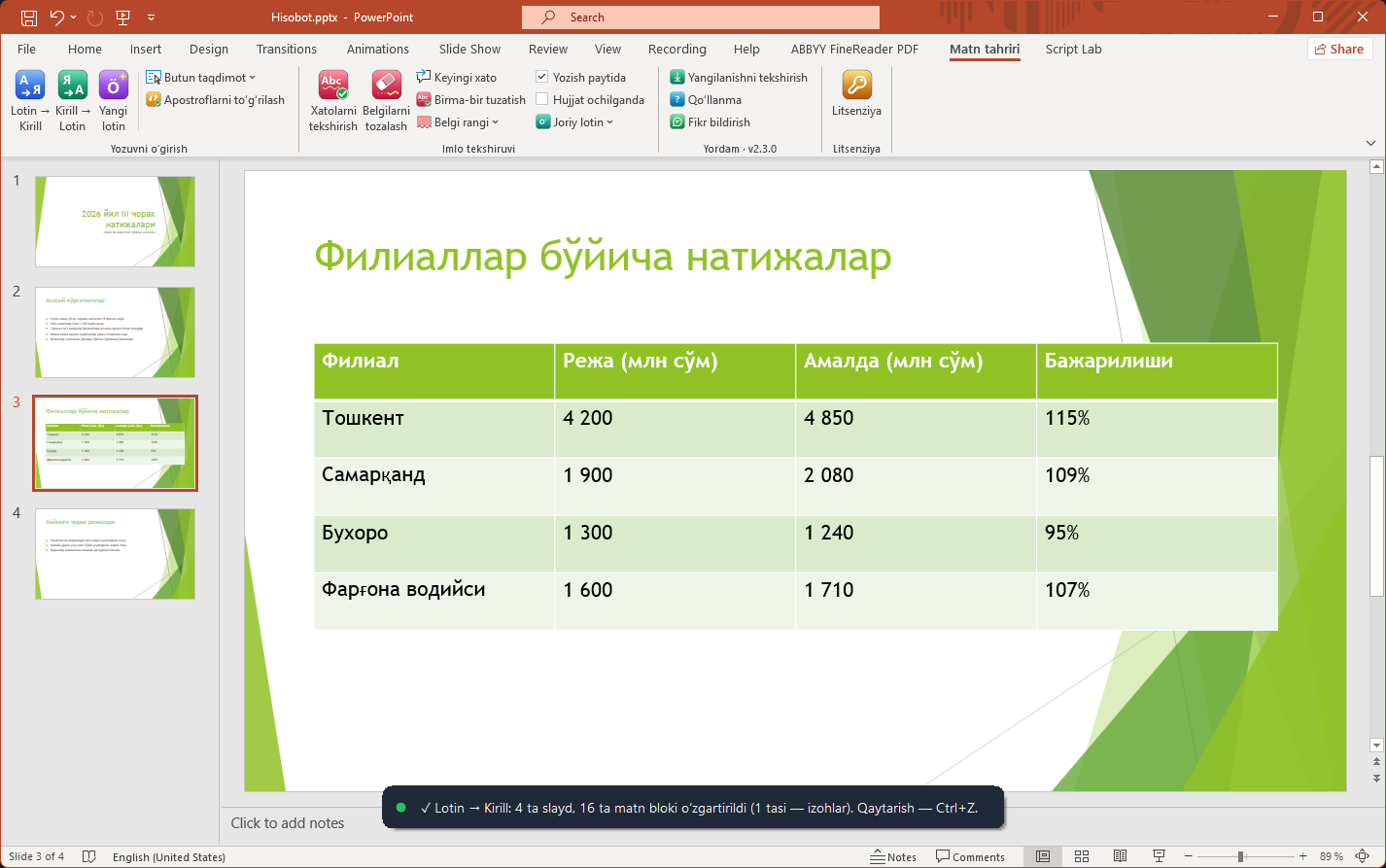
To convert several slides, select them in the thumbnail pane with Ctrl and set the scope to Belgilangan.
Formatting is fully preserved
Text is replaced in place, formatting run by formatting run. Font, size, colour, bold and italic, highlight, shadows and effects, hyperlinks, bullets and alignment all stay unchanged. Even a single letter in a different colour inside a word keeps its colour.
What stays unchanged
| What | Note |
|---|---|
| Charts | Chart text lives in the chart’s data sheet and is not converted. The message tells you how many charts were skipped. |
| Pictures, video, OLE objects | Left alone (text inside a picture is an image, not text). |
| Links | Web and e-mail addresses are not converted, and the hyperlink itself keeps working. |
| Slide master and layouts | Master and layout slides are not touched — only the text of your slides is converted. |
Undo (Ctrl+Z)
PowerPoint keeps the add-in’s changes in its own Ctrl+Z history, so no separate button is needed.
- Conversion
- A whole conversion, even of hundreds of slides — one Ctrl+Z.
- Apostrophes
- One Ctrl+Z.
- Spelling fixes
- Each fix is a separate step.
- After saving and closing
- PowerPoint clears the Ctrl+Z history, as usual.
Spell check
Xatolarni tekshirish (Check for errors) marks misspelled words in the presentation with a coloured background and a wavy underline — just like in Word. When you change slides, scroll or zoom, the marks move with the text. Words in rotated shapes are marked precisely too — the mark rotates with the text.
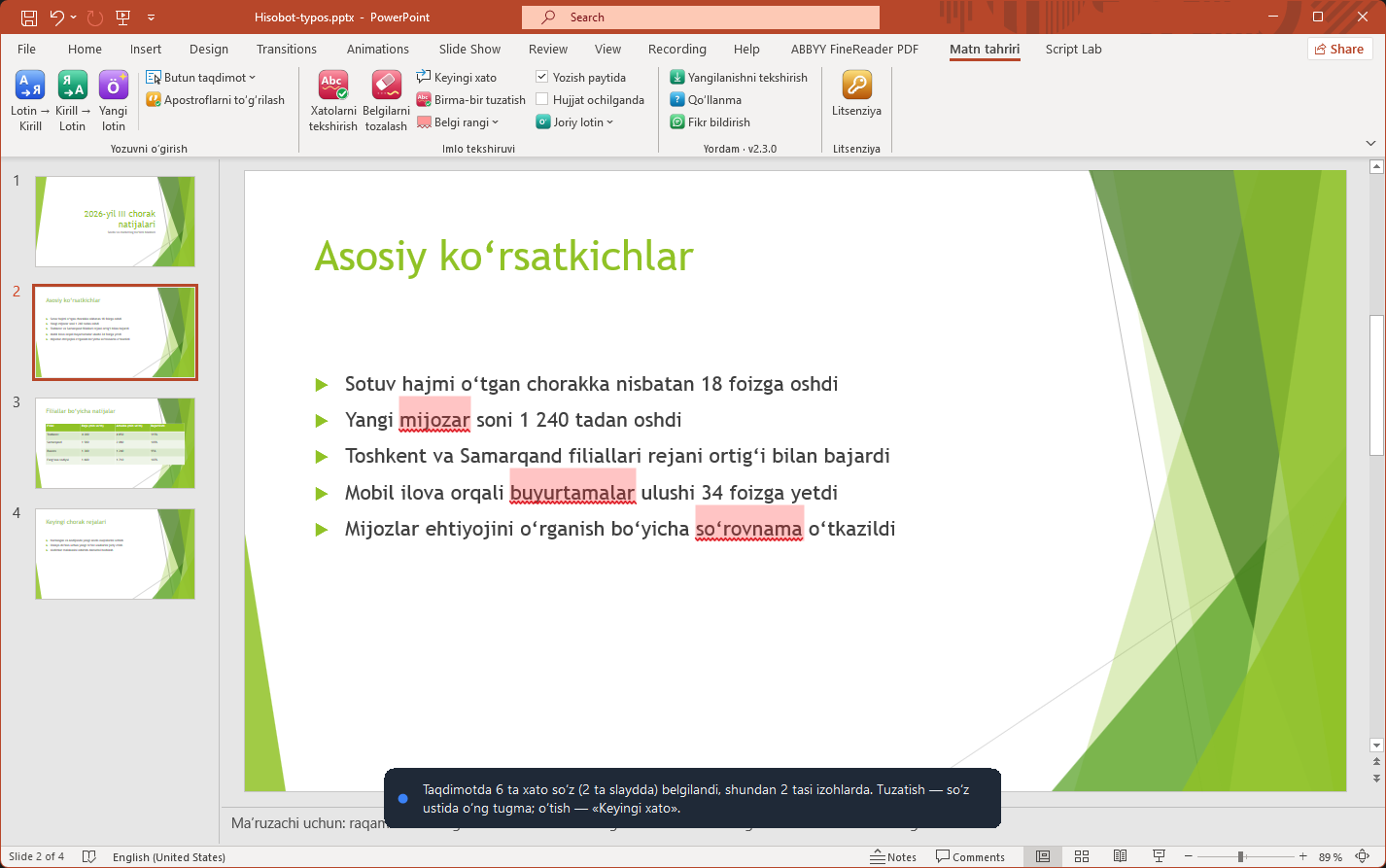
mijozar, buyurtamalar and so‘rovnama are marked as errors.The marks exist only on screen
Nothing is written to the file or the Ctrl+Z history. The marks don’t show in the slide show, in print or in PDFs. Belgilarni tozalash (Clear marks) removes them.
- Frame around a shape
- With vertical text or a WordArt warp, the whole shape gets a dashed frame instead of the word.
- Errors in notes
- Are counted and shown by Keyingi xato and Birma-bir tuzatish, but not drawn in the notes pane.
PowerPoint’s own red underline
PowerPoint’s built-in spell check tests Uzbek words against an English dictionary and underlines almost every word. To keep the two kinds of underline from mixing, the add-in — just as in Word — turns off PowerPoint’s “check spelling as you type” setting, so only the UzOffice marks remain.
This is an application setting only — nothing is written to the presentation. PowerPoint reads it at start-up, so the change takes effect the next time you open PowerPoint.
Fixing errors
With the right-click menu
Right-click a marked word — the correct variants appear at the very top of the menu. Choose one: the word is replaced and keeps its formatting.
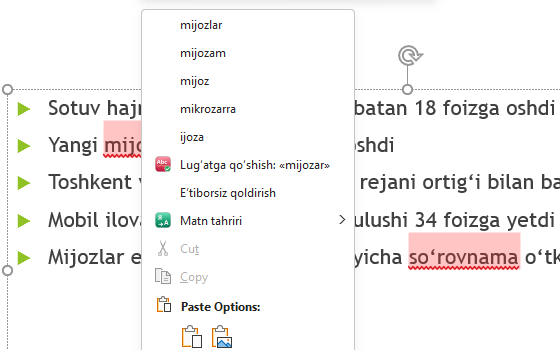
mijozar: the suggestions mijozlar, mijozam, mijoz.- Lugʻatga qoʻshish: «…» (Add to dictionary) — the word goes into your personal dictionary (shared with Word and Excel);
- Eʼtiborsiz qoldirish (Ignore) — the word is not marked for the rest of the session;
- (taklif yoʻq) (no suggestions) — no similar word was found in the dictionary.
Next error
Keyingi xato selects the next misspelled word on its slide (after the end of the presentation it starts again from the beginning) and shows the total number of errors.
One by one
Birma-bir tuzatish opens the UzOffice — Imlo tekshiruvi window, in the style of F7: if something is selected — the selection, otherwise the whole presentation, notes included. Buttons: Almashtirish (change), Hammasini almashtirish (change all), Oʻtkazib yuborish (skip), Hammasini oʻtkazish (skip all), Lugʻatga qoʻshish (add to dictionary).
Automatic checking, mark colour and alphabet
- Yozish paytida
- When on (default), errors are marked as soon as you type into a shape or table. When off — only when you click Xatolarni tekshirish.
- Hujjat ochilganda
- When on, all errors in a presentation are marked as soon as it opens (default — off).
- Belgi rangi
- Qizil (red, default) or Sariq (yellow) — whichever is easier to see on your slide background. On red slides, yellow works better.
- Alphabet menu
- Joriy lotin, Yangi lotin or Ikkala alifbo. Shared with the Word and Excel add-ins. Details: spelling alphabet.
Fixing apostrophes
Apostroflarni toʻgʻrilash turns the keyboard apostrophe and its variants (' ‘ ’ `) into the correct character: after o and g — ʻ, elsewhere — the glottal stop ʼ. It works in the chosen scope; the number of characters doesn’t change, so formatting stays exactly in place. To revert — Ctrl+Z.
Tips
- Keyboard. Press Alt and open the Matn tahriri tab, then K — Lotin → Kirill, L — Kirill → Lotin, Y — Yangi lotin, T — Xatolarni tekshirish, X — Belgilarni tozalash.
- A presentation in both scripts. Make a copy with “Save As” and convert the copy — you’ll have both versions.
- Apostrophes first, spelling second. In text copied from elsewhere, click Apostroflarni toʻgʻrilash first.
- Before presenting. Walk through the whole deck with Keyingi xato — the marks never show in the slide show anyway.
FAQ
I don’t like the conversion result. How do I revert it?
Press Ctrl+Z once — the whole conversion is undone in one step.
Some text was not converted
It may be chart text (stored in the chart’s data sheet), text inside a picture, or an OLE object. A presentation marked as Final or opened in Protected View can’t be changed either — enable editing first.
Text on the slide master was not converted
The add-in deliberately doesn’t touch master and layout slides. Edit fixed text on the layout by hand in View → Slide Master.
PowerPoint’s own red underline is still there
Close PowerPoint completely and open it again — the setting takes effect from the next start. The licence must be active.
There is no Matn tahriri item in the right-click menu
The licence may not be activated. The item doesn’t appear over pictures or charts — right-click a text shape.
A correct word is marked as an error
Check three things: (1) a wrong apostrophe — click Apostroflarni toʻgʻrilash; (2) the wrong alphabet — pick the right one in the alphabet menu; (3) the word isn’t in the dictionary — right-click it and choose Lugʻatga qoʻshish.