

The Excel add-in is installed by the same installer as the Word and PowerPoint add-ins and uses the same licence. Not installed yet? See Installing the add-ins. If you have already activated it in Word or PowerPoint, there is nothing to activate in Excel.
What the add-in does in Excel
The add-in adds the same Matn tahriri (“Text editing”) tab to the Excel ribbon as in Word. It converts spreadsheets from Latin to Cyrillic and back, moves them to the new Latin alphabet, checks Uzbek spelling and fixes apostrophes. The conversion rules and the spelling dictionary are exactly the same as in the Word add-in.
The add-in’s interface is in Uzbek (Latin script) in every language version of Office. Below, button names are shown as they appear in Excel, with an English translation in brackets.
The Matn tahriri tab in Excel
Open Excel and select the Matn tahriri tab on the ribbon. The buttons are split into four groups:

| Group | Button | What it does |
|---|---|---|
| Yozuvni oʻgirish (Convert script) |  Lotin → Kirill Lotin → Kirill | Converts the text in the chosen scope from Latin to Cyrillic. |
 Kirill → Lotin Kirill → Lotin | Converts to the current Latin alphabet (O‘, G‘, Sh, Ch). | |
 Yangi lotin Yangi lotin | Moves the text to the new Latin alphabet (Ö, Ğ, Ş, Ç). | |
| Scope menu (Joriy varaq) | Chooses what the buttons act on: Belgilangan kataklar (selected cells), Joriy varaq (current sheet) or Butun kitob (whole workbook). The button label shows the current choice. | |
 Apostroflarni toʻgʻrilash Apostroflarni toʻgʻrilash | Replaces assorted apostrophes with the correct Uzbek characters. | |
| Bekor qilish (Undo) | Reverts the last conversion or apostrophe fix. The button shows the action’s name: Bekor qilish: … | |
| Imlo tekshiruvi (Spell check) |  Xatolarni tekshirish Xatolarni tekshirish | Highlights misspelled words in the workbook on screen. |
 Belgilarni tozalash Belgilarni tozalash | Removes all marks in this workbook. Does not touch the text. | |
| Keyingi xato (Next error) | Jumps from the active cell to the next cell with an error and tells you how many such cells the sheet has. | |
| Birma-bir tuzatish (One by one) | Reviews misspelled words one at a time in a separate window. | |
| Belgi rangi (Mark colour) | Qizil (red, default) or Sariq (yellow). | |
| Yozish paytida (While typing) | When you type into a cell and press Enter, that cell is checked straight away. On by default. | |
| Hujjat ochilganda (On open) | Checks the whole workbook as soon as it opens. Off by default. | |
| Alphabet menu (Joriy lotin) | Which alphabet Latin words are checked against: Joriy lotin (current), Yangi lotin (new) or Ikkala alifbo (both). | |
| Yordam · v… (Help) |  Yangilanishni tekshirish Yangilanishni tekshirish | Checks for a new version. The group name shows the installed version. |
 Qoʻllanma Qoʻllanma | Opens the built-in guide to the Excel add-in. | |
 Fikr bildirish Fikr bildirish | Send us a suggestion or a bug report. | |
| Litsenziya |  Litsenziya Litsenziya | Licence status and activation window. Shared with Word and PowerPoint. |
Only Yordam and Litsenziya visible?
The licence is not activated yet or has expired. Activate it — the buttons appear straight away. If you activated in Word or PowerPoint, the buttons appear in Excel as soon as you switch to another workbook or cell.
Converting a spreadsheet
-
Choose the scope
Open the scope menu in the Yozuvni oʻgirish group and choose what to convert (details in the next section). The default is Joriy varaq (current sheet). Your choice is remembered.
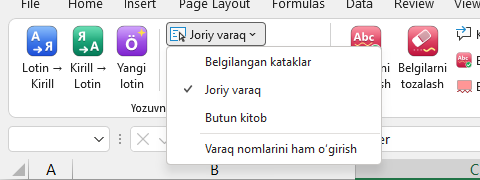
The scope menu. -
Click a direction button
Lotin → Kirill, Kirill → Lotin or Yangi lotin. Lotin → Kirill detects on its own whether the text is in the current or the new Latin alphabet. -
Check the result
Excel’s status bar shows how many cells and shapes were changed. Not happy with it? Click Bekor qilish (Undo).
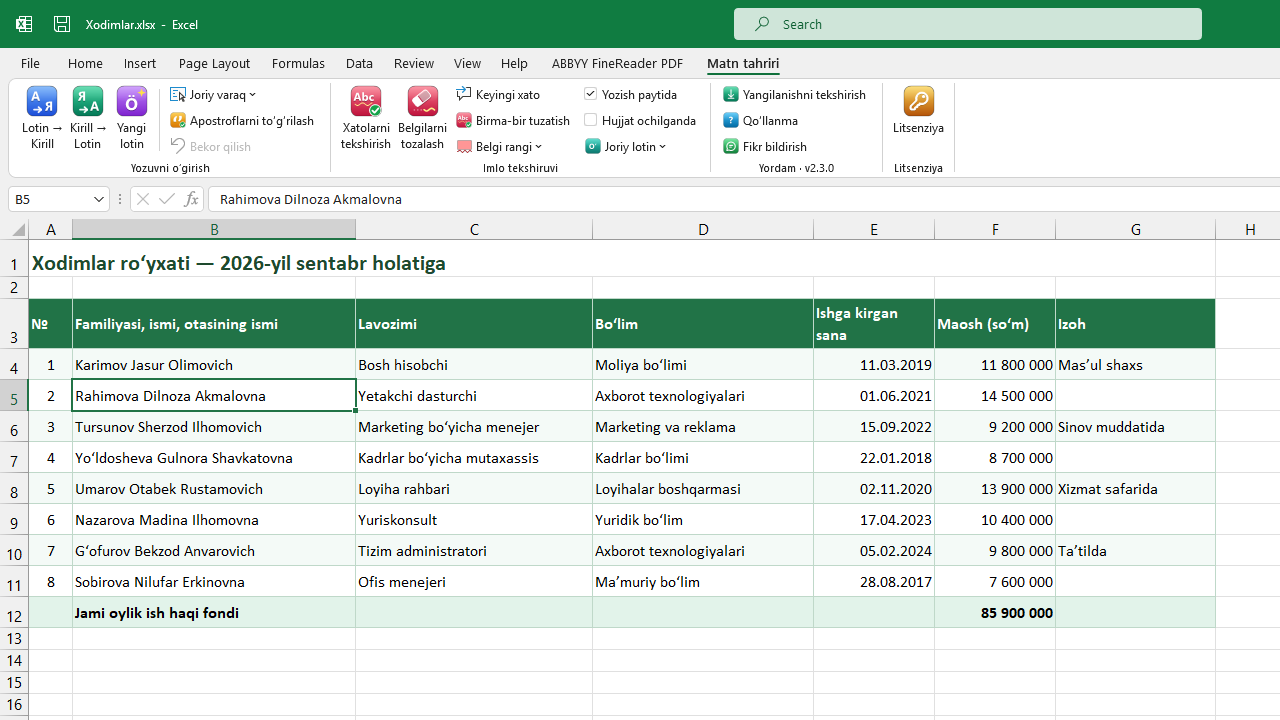
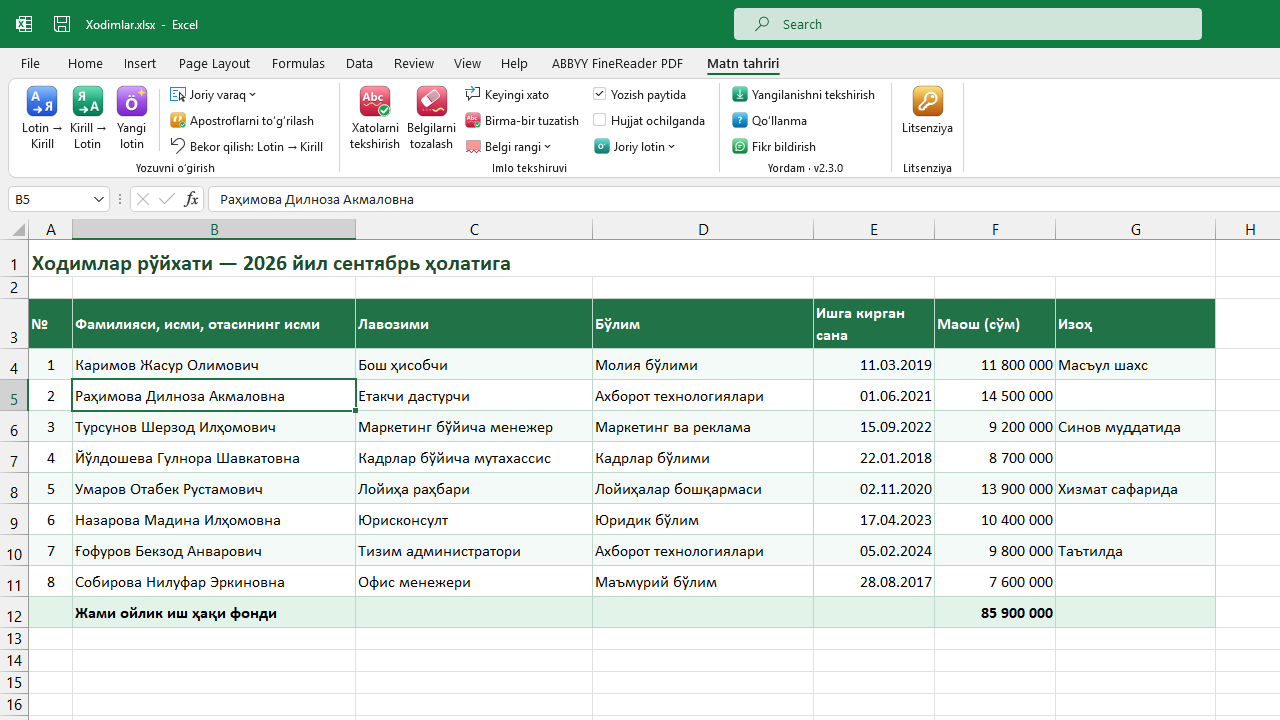
Large sheets convert quickly too: tens of thousands of cells take a few seconds. Repeated values (the same job titles or district names, for example) are converted only once.
Scope: what gets converted
| Choice | What is converted |
|---|---|
| Belgilangan kataklar (selected cells) | Only the selected cells. If a text shape (such as a text box) is selected instead of cells — that shape. |
| Joriy varaq (current sheet, default) | All text cells, notes and text shapes on the active sheet. |
| Butun kitob (whole workbook) | Every sheet in the workbook, hidden sheets included. |
The scope also applies to Apostroflarni toʻgʻrilash.
Need just one column? Click its header (for example, B) and set the scope to Belgilangan kataklar — or right-click the column header and convert from the context menu.
What stays unchanged
| What | Why |
|---|---|
| Formulas | Neither the formula nor its result is converted — changing text inside a formula could break it. |
| Numbers and dates | Only text cells are converted. Numbers stored as text, such as 00125, stay text. |
| Formatting | Font, colour, borders and number format are kept. Even if one word in a cell is bold or coloured, it stays that way. |
| Links | Web and e-mail addresses are not converted. |
| Protected sheets | Not changed — you get a message. Unprotect the sheet first. |
| Other objects | Charts, pictures, SmartArt, PivotTables and modern threaded comments are not changed. |
To convert text produced by a formula, turn the cells into values first: copy them, use Paste Special → Values, then convert.
Converting sheet names
If Varaq nomlarini ham oʻgirish (also convert sheet names) is ticked in the scope menu, sheet names are converted too when the scope is Joriy varaq or Butun kitob. Excel updates references in formulas on its own.
Macros that refer to a sheet by its name as text, and INDIRECT formulas, may stop working once the sheet is renamed. That is why this option is off by default. If the workbook has macros or such formulas, think twice before turning it on.
Undo
Excel does not keep changes made by add-ins and macros in its Ctrl+Z history — that is a general Excel rule. That is why the ribbon has a separate Bekor qilish (Undo) button.
-
Click the button
If you don’t like the result of a conversion or apostrophe fix, click Bekor qilish: …
-
Everything is restored
Changed cells, notes, shapes and sheet names return to their previous state.
- Last action only
- Each new conversion replaces the history of the previous one.
- Your manual edits
- Cells you edited by hand after the conversion are not touched — your work is not lost.
- Closing the workbook
- Clears the history.
- Very large changes
- If more than 200,000 cells change, no history is kept to save memory — you are warned beforehand.
Before converting an important workbook in full, save a copy — you may need both versions.
Spell check
The add-in checks Uzbek words in Latin and Cyrillic script. A misspelled word gets a coloured background and a wavy underline — just like in Word.
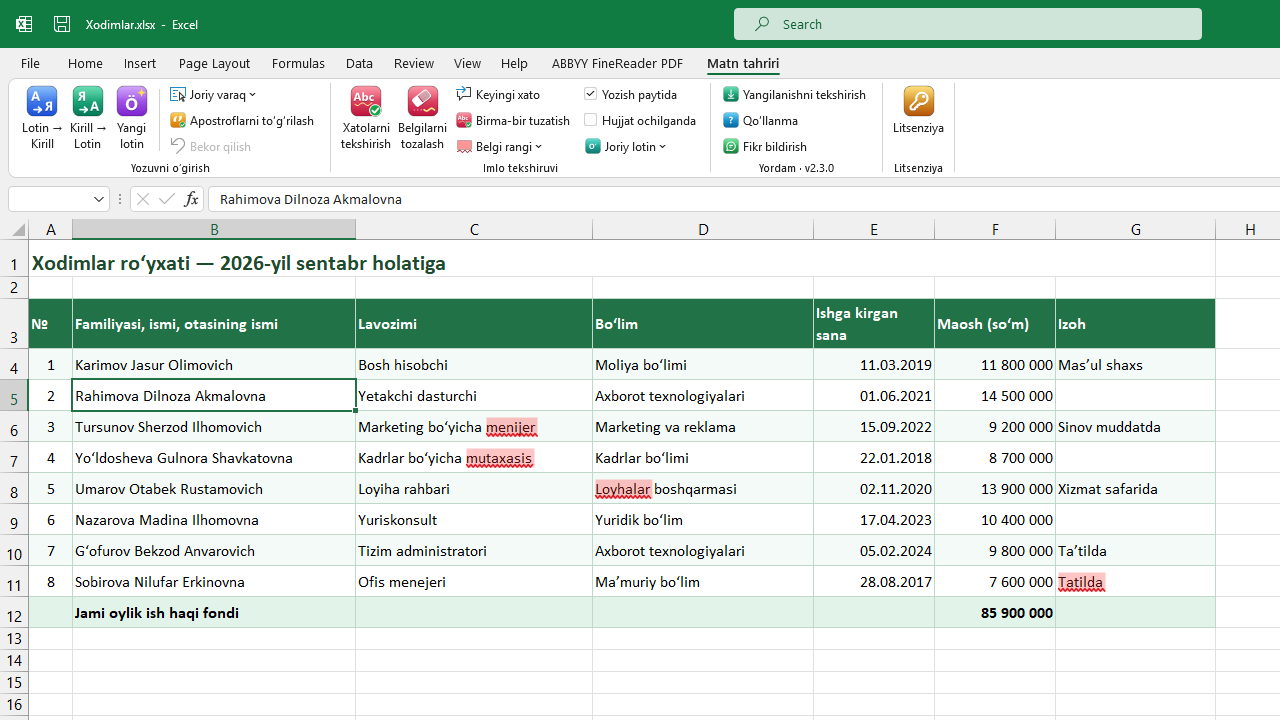
menijer, mutaxasis, Loyhalar and Tatilda are marked as errors — the rest of each cell is not.-
Click Xatolarni tekshirish
Xatolarni tekshirish (Check for errors) checks the whole workbook. The first check may take a second or two while the dictionary loads. -
Review the marks
When you scroll or zoom, the marks move together with the cells.
-
Fix
Right-click a misspelled word and choose the correct variant — see below.
The marks exist only on screen
Nothing is written to the file, the cell format or the Ctrl+Z history. The marks don’t print, don’t appear in PDFs, aren’t visible when the workbook is opened on another computer and don’t mark the file as modified. Belgilarni tozalash (Clear marks) removes them.
A frame around the whole cell
Sometimes the exact position of a word inside a cell can’t be calculated: the text is rotated, “Shrink to fit” is on, a special alignment is used, or the font has no Uzbek letters. In that case the whole cell gets a dashed frame instead of the word. The same happens when a neighbouring cell covers the text. Formula results are not checked.
Fixing errors
With the right-click menu
Right-click a marked word. At the very top of the menu:
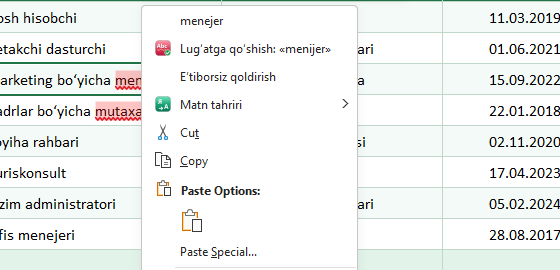
menijer: the suggestion menejer at the top, the Matn tahriri item below.| Menu item | What it does |
|---|---|
| Correct variants (up to 5) | The word is replaced with the chosen variant. The rest of the cell text and its formatting are kept. |
| Lugʻatga qoʻshish: «…» (Add to dictionary) | The word goes into your personal dictionary, which is shared with the Word and PowerPoint add-ins. |
| Eʼtiborsiz qoldirish (Ignore) | The word is no longer marked until Excel is closed. Nothing is added to the dictionary. |
| (taklif yoʻq) (no suggestions) | No similar word was found in the dictionary. |
Next error
Keyingi xato jumps from the active cell to the next cell with a misspelled word (after the end of the sheet it starts again from the top) and shows how many cells with errors the sheet has. It is the fastest way to walk through errors on a large sheet.
One by one
Birma-bir tuzatish opens the UzOffice — Imlo tekshiruvi window, in the style of Excel’s F7. If several cells are selected, only they are checked; otherwise the whole sheet. The window shows which cell the word is in, plus suggestions:
- Almashtirish / Hammasini almashtirish — change here / change everywhere;
- Oʻtkazib yuborish / Hammasini oʻtkazish — skip / skip all;
- Lugʻatga qoʻshish — add the word to your personal dictionary.
If there are no suggestions, type the correct form into the Almashtirish: field yourself.
Automatic checking and mark colour
- Yozish paytida
- When on (default), errors in a cell are marked as soon as you type into it and press Enter. When off — only when you click Xatolarni tekshirish.
- Hujjat ochilganda
- When on, all errors in a workbook are marked as soon as it opens (default — off). Applies to workbooks opened afterwards.
- Belgi rangi
- Qizil (red, default) or Sariq (yellow) — whichever is easier to see on your sheet.
If both options are off and you haven’t clicked Xatolarni tekshirish, the spelling layer doesn’t run at all and doesn’t slow Excel down.
Spelling: Latin alphabet
The alphabet menu in the Imlo tekshiruvi group chooses which alphabet Latin words are checked against: Joriy lotin (Oʻ, Gʻ, Sh, Ch, default), Yangi lotin (Ö, Ğ, Ş, Ç) or Ikkala alifbo (both). The setting is shared with the Word and PowerPoint add-ins — change it in one and it changes everywhere. Details: spelling alphabet in Word.
Fixing apostrophes
Apostroflarni toʻgʻrilash turns the keyboard apostrophe and its variants (' ‘ ’ `) into the correct Uzbek character: after o and g — ʻ (oʻ, gʻ), elsewhere — the glottal stop ʼ (maʼno).
It works in the chosen scope. The number of characters doesn’t change, so formatting inside a cell stays exactly in place. You can revert it with Bekor qilish.
If the spell check marks a correct word, click this button first — the cause is often a wrong apostrophe.
Tips
- Keyboard. Press Alt — letters appear on the ribbon. Open the Matn tahriri tab, then press K — Lotin → Kirill, L — Kirill → Lotin, Y — Yangi lotin, T — Xatolarni tekshirish, X — Belgilarni tozalash.
- Apostrophes first, spelling second. In a sheet taken from another source, click Apostroflarni toʻgʻrilash first.
- Mixed sheets. To keep columns with English names, codes or SKUs as they are, select the columns you need and convert with the Belgilangan kataklar scope.
- Report templates. Because formulas are not changed, calculations keep working after you convert a template.
- Built-in guide. Qoʻllanma opens a short guide without leaving Excel.
FAQ
Ctrl+Z doesn’t undo the conversion
That is how Excel works: changes made by add-ins and macros don’t go into its history. Click Bekor qilish on the ribbon — it fully reverts the last conversion.
Some cells were not converted
They may be formulas (formula results are not converted), or the sheet is protected. Check the scope too: with Belgilangan kataklar, only the selection is converted.
A chart title or PivotTable was not converted
Charts, PivotTables, SmartArt and pictures are not changed. If a chart takes its labels from cells, converting those cells updates the chart labels as well.
There is no Matn tahriri item in the right-click menu
The licence may not be activated, or the cell is in edit mode. Press Enter and try again.
A correct word is marked as an error
Check three things: (1) a wrong apostrophe — click Apostroflarni toʻgʻrilash; (2) the wrong alphabet — pick the right one in the alphabet menu; (3) the word isn’t in the dictionary — right-click it and choose Lugʻatga qoʻshish.
The whole cell is framed instead of the word being underlined
That’s expected: when the exact position of a word can’t be calculated (rotated text, special alignment, some fonts), the whole cell is framed. Select the cell and fix it with Birma-bir tuzatish.
Are the spelling marks saved in the file?
No. They are drawn only on your screen. If you send the file to someone or print it, they won’t see them.