
What the Document Assistant is
The Document Assistant is a conversation partner that finds the document you need from a plain description of your situation and fills it in together with you. You don’t need to know the document’s official name or structure: write “I want to rent out my flat for a year” or “I lent money to a friend”, and the assistant picks the right document, asks for the missing details one by one and prepares it filled in.
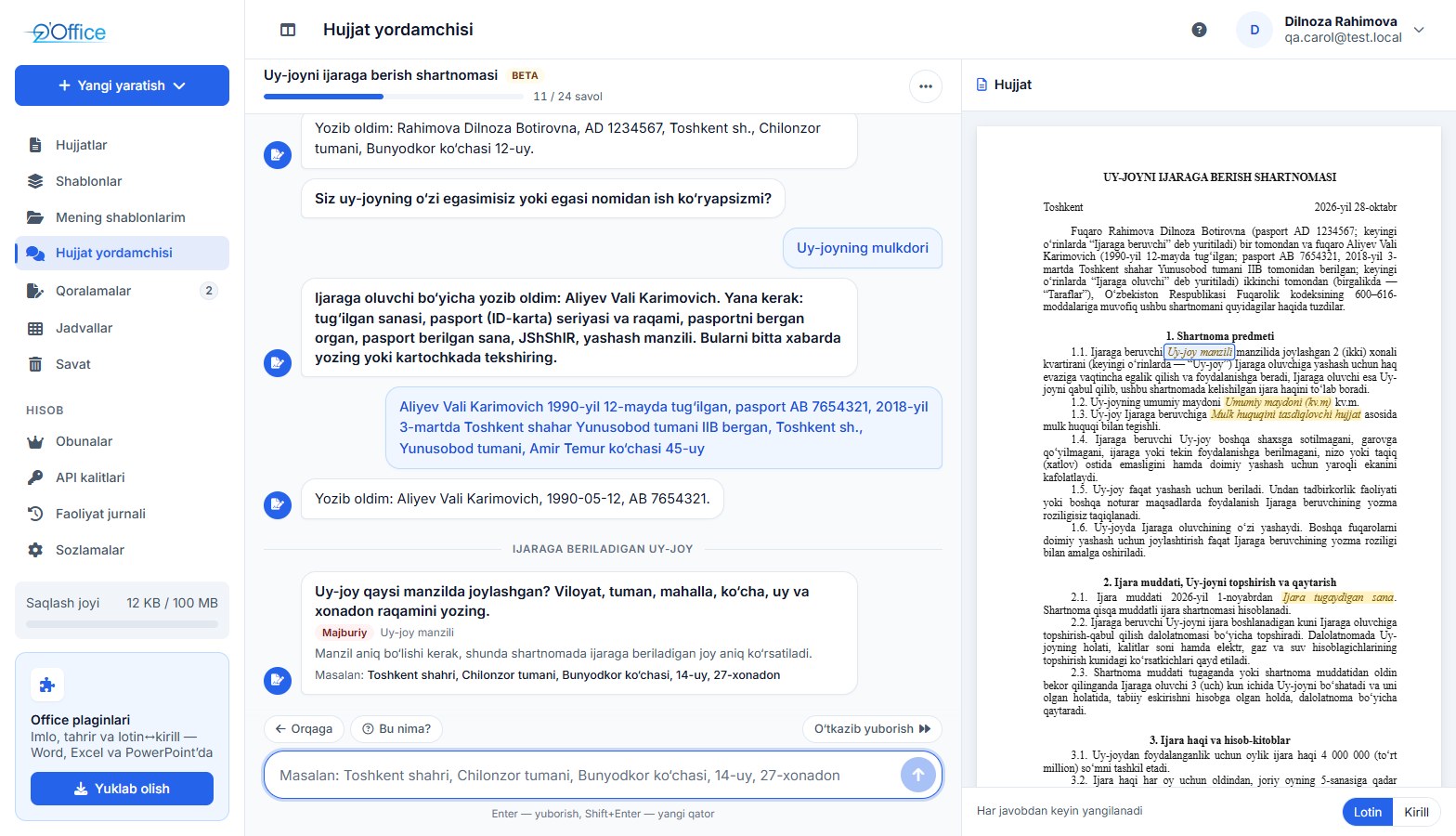
- Where
- The Document assistant item in the left menu of the dashboard, or /documents/assistant.
- Which documents
- About 300 document types: sale, lease, loan, contracting and service agreements; HR orders, employment contracts and employee applications; court claims, applications, motions and appeals; powers of attorney, demand letters and appeals to government bodies.
- Languages you can write in
- Uzbek (Latin or Cyrillic script) and Russian. The finished document is in Uzbek — in Latin or Cyrillic script.
- Who can use it
- Every registered user. How many documents you can prepare with the assistant per month depends on your plan; downloading a finished document requires an active subscription (a 7-day free trial is given after sign-up).
Starting a conversation
-
Open the assistant
Click Document assistant in the left menu. The start screen has a “What document do you need?” box, ready-made examples and your recent conversations.
-
Describe your situation
Write what happened and what you want to do in your own words, or click one of the examples under For example. Enter sends, Shift+Enter adds a new line.
-
Confirm the document
The assistant says which document it thinks you need and asks whether that is right — choose Yes, this one or A different document. If the situation is unclear, it first asks one clarifying question with answer options: not document names, but everyday situations (for example, “they won’t pay the money back” or “I need an agreement to lend money”).
Put more into the first message
Who, to whom, why, how much and when — write whatever you already know in the very first message: “I am renting my 2-room flat in Tashkent to Vali Aliyev for one year from 1 November at 4 million soums a month”. The assistant picks up every detail from the message and won’t ask for it again.
Answering the questions
Once the document is chosen, the assistant asks for the missing details one at a time. Just answer in plain words — it recognises dates, amounts, phone numbers and other values by itself.
| When asked for | How you can answer |
|---|---|
| A date | “1 November 2026”, “01.11.2026” or pick it in the calendar; there are also Today and Tomorrow buttons. |
| An amount or number | “5 000 000”, “5 mln” or the number in words. |
| A question with options | Click one of the buttons or type the answer yourself. |
| A party to the document (a person or an organisation) | Fill in the fields on the card, or write everything in one message — the assistant puts it on the card for you. Fields marked * are required. |
- Skip — postpones a question you can’t answer; you fill it in when you open the document.
- What is this? — explains what the question means and shows a sample answer.
- Back — undoes your last answer and asks that question again.
- The bar in the conversation header shows how many questions have been answered (for example, “11 of 24 questions”).
- On a wide screen the document preview always stays on the right and updates after every answer; the Latin / Cyrillic buttons below it switch the script. On phones and small screens, open the document with the Document button in the header.
The assistant checks your answers: for example, if the total amount doesn’t match the sum of the stages, it asks which one is correct.
Reviewing and opening the document
Once the main details are collected, the assistant offers to fill in the optional items too (Yes, let’s fill them in or No, go to the document). Then a list of all answers appears — to change a value, click the pencil next to it or write in the chat, for example: “make the price 6 million”.
The Open the document button opens the filled-in document on its own page:
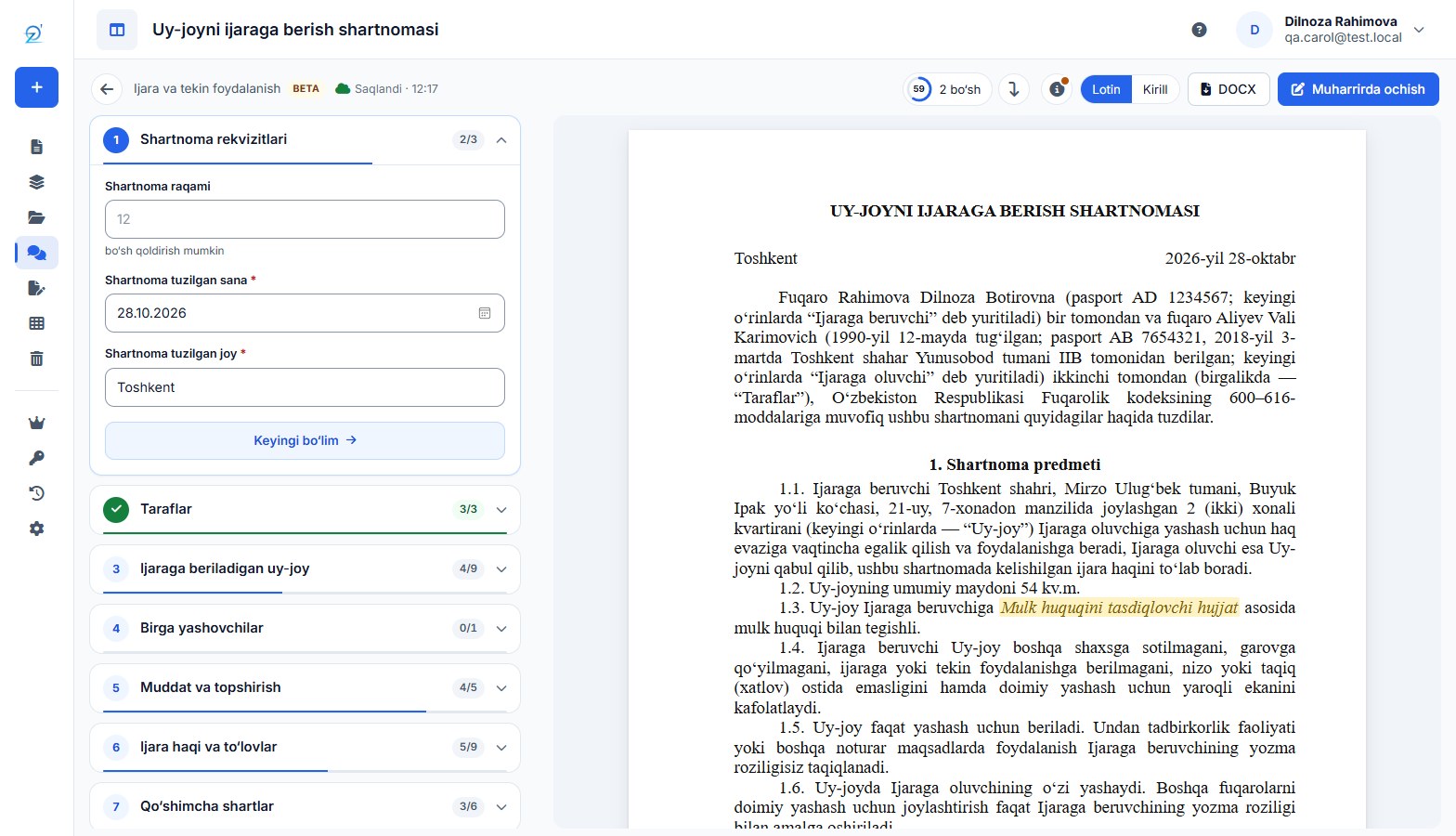
- In the sections on the left (for example, “Shartnoma rekvizitlari” or “Taraflar” — section names follow the document’s language) you check the values the assistant filled in and enter the ones you skipped; each section shows how many of its fields are filled, and the document text updates instantly. The percentage at the top and the button take you to the next empty field or the next item to check.
- Latin / Cyrillic — chooses the document’s script.
- DOCX downloads the document as a Word file; Open in editor saves it to your documents and opens it in the UzOffice text editor.
- Notes and legal basis — which legislation the document is based on, plus important notes.
- Saved details — save organisation or personal details you use often and insert them into later documents with one click.
- A Beta badge means the document is still going through additional review — read it especially carefully.
Always read the document
The assistant is based on artificial intelligence and can make mistakes; it does not give legal advice. Before signing or submitting the document anywhere, check its content, names, amounts and dates. For important transactions, consult a lawyer.
Continuing later
Every step of the conversation and every change on the document page is saved automatically. Even if you close the browser or sign in from another device, you continue where you left off.
- If you have unfinished work, the assistant’s start screen shows an Unfinished work card, with your Recent conversations below it.
- The Drafts page in the left menu lists everything in three tabs: In progress, Ready and Conversations. You can Remove from list anything you don’t need — the Undo button that appears brings it back.
- Need another document? Choose New conversation in the conversation menu () — the current conversation is kept.
Limits and subscription
- How many documents you can prepare with the assistant per month depends on your plan. The current count is shown on the start screen: “This month via the assistant: 2 of 5 documents”.
- A document counts towards the limit when its type is chosen. Conversations where no document was chosen (still clarifying, or no matching document found) don’t count.
- When the limit is reached you can still finish documents you have already started; new ones can be started next month or after upgrading your plan.
- Downloading the finished document as DOCX or opening it in the editor requires an active subscription.
- A single message can be up to 1000 characters.
- If the artificial intelligence service is temporarily unavailable, the assistant works in a simplified mode: you choose the document and answers with buttons.
Keeping your data safe
To understand your messages, the assistant uses an artificial intelligence service located outside Uzbekistan. That is why:
- passport, PINFL, bank card and account numbers, phone numbers, email addresses, taxpayer numbers (STIR) and bank codes (MFO) are replaced with hidden markers before sending — the real values are only written into your document;
- details entered on a party card are not sent to the artificial intelligence service at all;
- surnames, names, addresses and organisation names are needed to understand the meaning, so they are not hidden — don’t write anything you don’t want to disclose;
- the Allow this conversation to be used to improve the service option in the conversation menu is off by default; we use a conversation to improve the assistant only if you turn it on yourself.
Details: Privacy Policy — Document Assistant and artificial intelligence.
Frequently asked questions
What if the assistant can’t find the document I need?
Try describing the situation in other words: who, to whom and why. If there is no matching document, your request is recorded — new documents are added based on exactly these requests. For everyday applications and letters you can also use the document templates.
Can I write in Russian?
Yes. The assistant understands messages in Uzbek (Latin and Cyrillic) and Russian. The finished document is in Uzbek — you choose Latin or Cyrillic script on the document page.
Does the assistant give legal advice?
No. It helps you choose and fill in a document but does not replace an advocate or lawyer. Documents are based on current legislation, but you check whether one fits your situation.
Can I edit the finished document in Microsoft Word?
Yes, the DOCX button gives you an ordinary Word file. If you need Uzbek spell check in Word, install the UzOffice Word add-in.
What if I send a wrong answer?
Write the correct one in the chat (“make the date 5 November”) or click the pencil in the review list. You can also change any value on the document page.