
Create a spreadsheet
-
Open the Worksheets page
Click Worksheets in the left menu.
-
Choose blank or template
Click New spreadsheet for an empty sheet, or the To-do list template for a ready-made task list.
-
Name it
Click the name in the editor's top bar and type a new one.
Spreadsheets are stored as Excel files (.xlsx). Uploading your own files into the spreadsheet editor is not available yet; .csv and .xls are not supported. To move data from another file, copy the cells and paste them into the sheet.
The editor at a glance
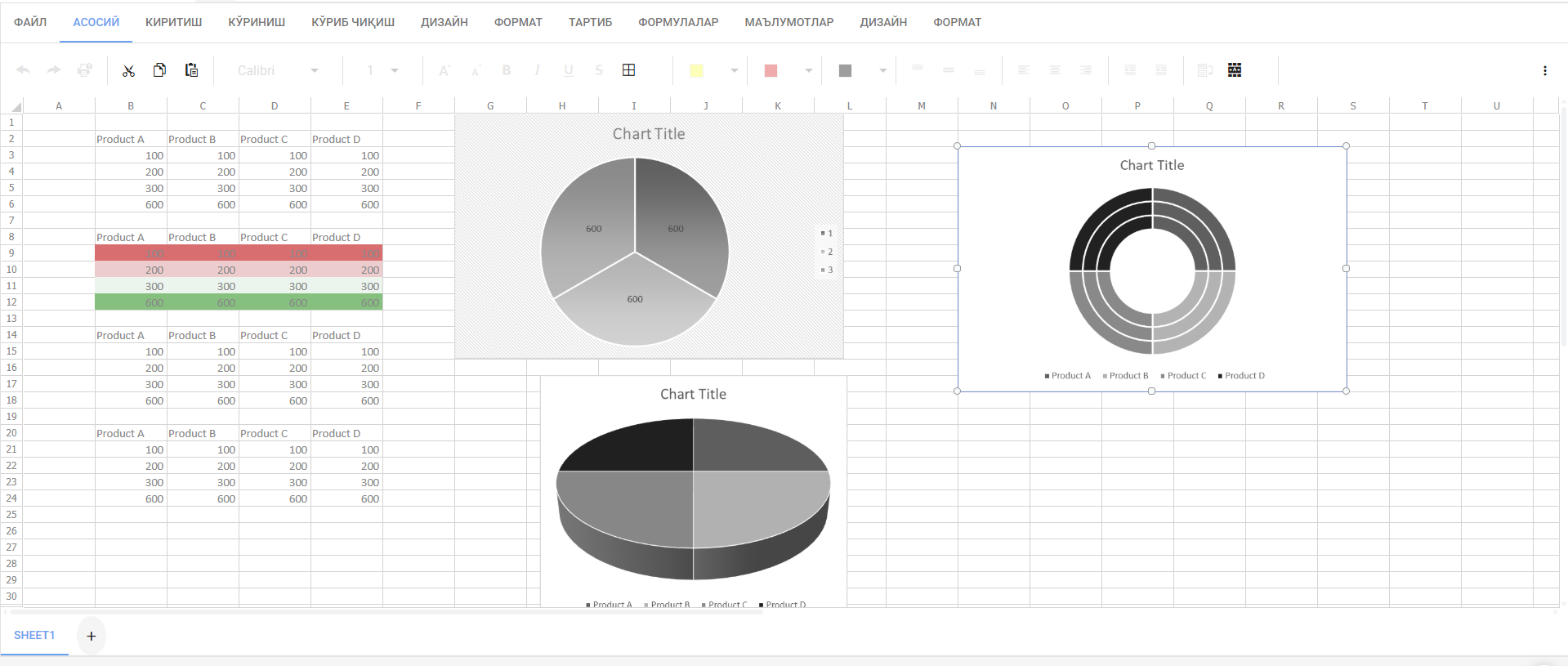
| Tab | What you'll find there |
|---|---|
| File | Save, Download as .xlsx, Download PDF, Print. |
| Home | Font, borders, fill, alignment, number formats, inserting and deleting rows and columns, AutoSum, sort and filter. |
| Insert | Tables, charts, pictures and links. |
| View | Freeze panes and gridlines. |
| Review | Cell comments. |
| Formulas | The function library, defined names and calculation options. |
| Data | Sorting, filtering and data validation. |
| Design, Layout, Format | Appear only when a chart or a table is selected. |
Entering data
Click a cell, type text, a number or a date and press Enter. Move with the arrow keys, Tab or the mouse. To change a column width or row height, drag the border between the headers. Number formats (currency, percentage, date) are on the Home tab.
Formulas
A formula starts with =. For example:
| Formula | Result |
|---|---|
=SUM(A1:A10) | Sum of cells A1–A10. |
=AVERAGE(B1:B5) | Average of B1–B5. |
=IF(C2>100,"high","low") | A result that depends on a condition. |
=COUNTIF(D:D,"done") | How many cells in column D say "done". |
Function names are in English, as in Excel. The Formulas tab lists all available functions by category. When a cell used in a formula changes, the result is recalculated automatically.
The separator between arguments depends on your language settings — if , gives an error, try ;.
Sorting and filtering
Select the data range and use Sort & Filter on the Home tab or the commands on the Data tab. Sorting orders rows A→Z or by value; a filter adds drop-down arrows to the headers and shows only the rows that match. You can also turn a range into a table (Insert → Table) — filters are then added automatically.
Charts
Select the data (including the header row), open Insert and choose a chart type — column, bar, line, pie and others. When the chart is selected, the Design, Layout and Format tabs appear for changing its style, titles and legend. A chart updates when the data changes.
Saving
Spreadsheets save the same way as text documents: automatically about 4 seconds after you stop editing (and at least every 30 seconds during continuous work). The status next to the name shows Unsaved changes, Saving…, Saved 14:32 or, on error, Not saved — retry (click it to try again). Ctrl+S saves immediately, and the browser warns you if you try to leave with unsaved changes.
Autosave depends on your plan (the trial includes it). Without it, use File → Save or Ctrl+S.
Download, PDF and printing
| Command (File tab) | Result |
|---|---|
| Download as .xlsx | An Excel file with formulas, formatting and charts — opens in Excel, LibreOffice and Google Sheets. |
| Download PDF | A PDF of the current content, with correct Cyrillic and ‘ ’. Availability depends on your plan. |
| Opens the browser's print dialog. |
Frequently asked questions
Can I open my Excel file?
Not directly — importing files into the spreadsheet editor isn't available yet. Create a new spreadsheet and paste the data from your file.
Do formulas work like in Excel?
Yes. Common functions (SUM, AVERAGE, IF, VLOOKUP and others) use the same names and syntax, and the downloaded .xlsx keeps them.
Can a colleague edit my spreadsheet?
Yes — share it with edit access. Just don't edit at the same moment: the last save wins.