
Create or open a document
-
Create a document
On the Documents page click Blank document or the CV template. You can also use Create new in the left menu.
-
Rename it
Click the name in the editor's top bar and type a new one.
-
Or bring in an existing file
In a blank document, go to File → Open and choose a
.docx,.rtf,.txtor.htmlfile from your computer. Its content is loaded into the editor and saved to this UzOffice document.
Old .doc, .odt and .pdf files can't be opened. Save them as .docx in Word or another program first.
The editor at a glance
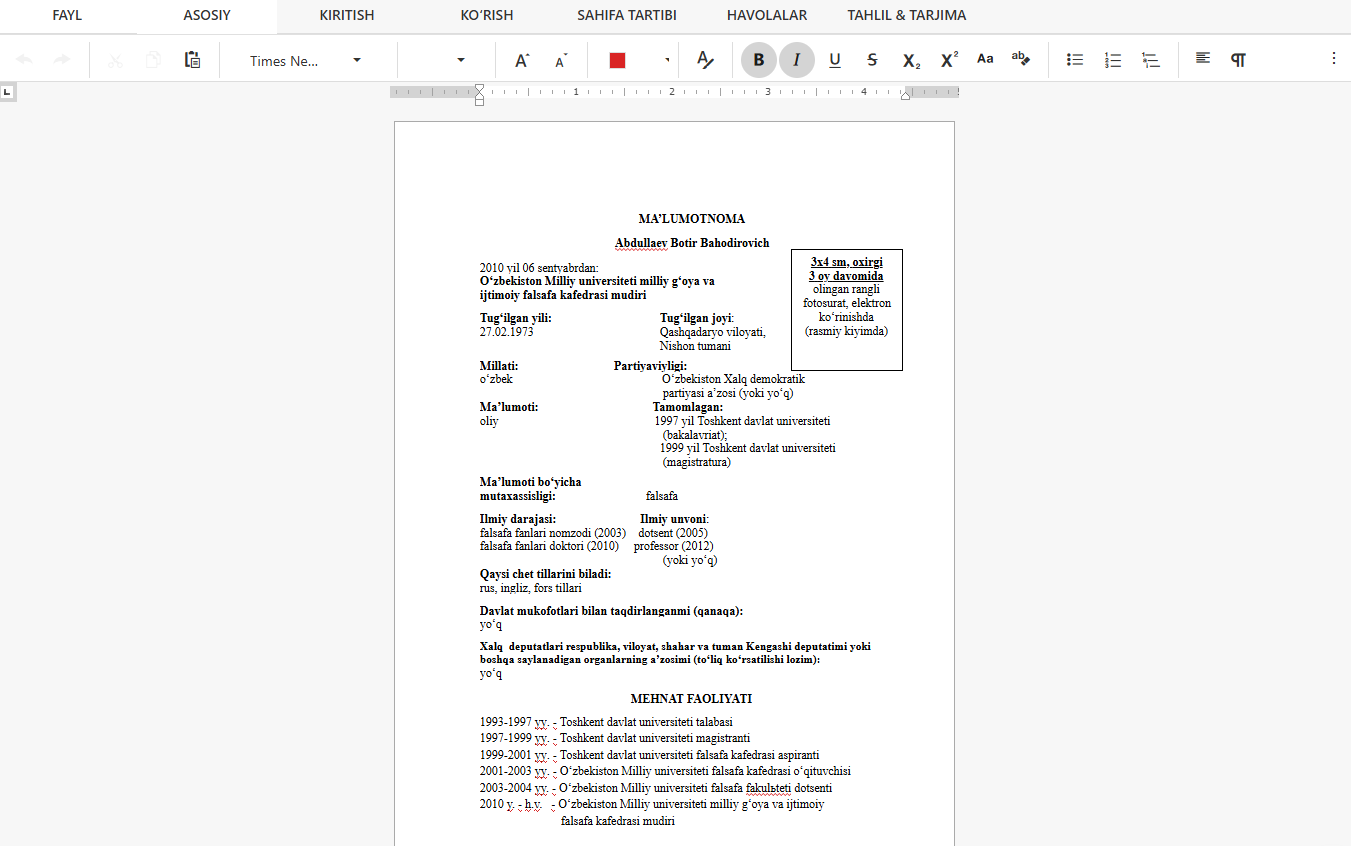
The top bar shows the document name, the save status and the Share button. Below it is the ribbon:
| Tab | What you'll find there |
|---|---|
| File | Open, Save, Print, Download and Download PDF. |
| Home | Font, size, bold/italic/underline, colour, alignment, lists, styles, line spacing, clipboard, find and replace. |
| Insert | Tables, pictures, text boxes, links, bookmarks, page breaks, headers and footers, page numbers. |
| View | Page view, ruler and zoom. |
| Page Layout | Margins, orientation, paper size, columns, breaks, page colour. |
| References | Table of contents and captions. |
| Analysis & Translation | Latin ↔ Cyrillic conversion, the new Latin alphabet, fixing apostrophes and the spell-check alphabet. |
Formatting text
Select text and use the Home tab: font and size, Ctrl+B bold, Ctrl+I italic, Ctrl+U underline, text colour and highlight, alignment, bulleted and numbered lists, indents and line spacing. Heading styles (Heading 1, Heading 2…) give a document structure and are used to build a table of contents on the References tab.
Page margins, orientation and paper size are set on the Page Layout tab and apply to the printout and the downloaded file.
Tables, pictures and links
The Insert tab adds a table (choose the number of rows and columns), a picture from your computer, a text box, a hyperlink or a bookmark, as well as headers, footers and page numbers. Click a table cell to type in it; select a picture to resize it or change how text wraps around it.
Latin ↔ Cyrillic and spelling
The Analysis & Translation tab holds the Uzbek-language tools:
| Button | What it does |
|---|---|
| L-C | Converts the whole document from Latin to Cyrillic. |
| C-L | Converts the whole document from Cyrillic to the current Latin alphabet. |
| New Latin | Converts the document to the new Latin alphabet (Ö Ğ Ş Ç). |
| Fix apostrophes (magic-wand icon) | Replaces the various apostrophe look-alikes with the correct Uzbek characters (o‘ g‘ and ’). |
| Spelling: current Latin / new Latin / both alphabets | Chooses which Latin alphabet spell check uses. |
To convert only part of the text, select it, right-click and choose the conversion in the menu. More details: Latin–Cyrillic conversion.
Spell check
Uzbek text in Latin and Cyrillic is checked as you type. Unknown words get a wavy underline. Right-click such a word to see up to five suggestions, to ignore it, or to add it to your personal dictionary — then it is no longer marked in any of your documents.
Autosave
The document saves itself about 4 seconds after you stop typing, and at least every 30 seconds while you keep typing. The status next to the document name shows what is happening:
| Status | Meaning |
|---|---|
| Unsaved changes | You've made changes; they will be saved in a moment. |
| Saving… | The document is being saved right now. |
| Saved 14:32 | Everything is saved; the time of the last save is shown. |
| Not saved — retry | Saving failed (for example, the connection dropped). It retries automatically; you can also click the status to retry now. |
Press Ctrl+S to save immediately. If you try to close the tab while there are unsaved changes, the browser warns you.
Autosave depends on your plan (the 7-day trial includes it). Without it, save with File → Save or Ctrl+S.
Download, PDF and printing
| Command (File tab) | Result |
|---|---|
| Download | Saves the document to your computer as .docx, .rtf, .txt or .html. |
| Download PDF | Creates a PDF of the current content — including changes not yet saved. Cyrillic letters and ‘ ’ come out correctly. The file is named after the document. |
| Opens the browser's print dialog. |
PDF download depends on your plan. Check the plan card under Subscriptions.
What the editor doesn't do
So you can plan your work, here is what is not available in the text editor at the moment:
- track changes, comments and version history;
- password protection or restricting editing inside the document (access is controlled through sharing);
- several people editing at the same time with live cursors;
- opening
.doc,.odtor.pdffiles.
Frequently asked questions
Can I continue working on my Word file?
Yes, if it is a .docx: create a blank document and use File → Open. When you're done, download it back as .docx.
Could I lose my changes?
With autosave the document is saved a few seconds after you stop typing. Watch the status next to the name: if it says Not saved — retry, check your connection and click it, or press Ctrl+S.
Does it work on a phone?
Yes, the editor opens in a mobile browser. For long documents a computer is more comfortable.