
Delete a file
-
Find the file
Open Documents or Worksheets in the left menu.
-
Open its menu
Click at the end of the file's row.
-
Choose Delete
Confirm. The file disappears from the list and moves to the Trash — it is not erased yet.
Deleting a file that someone else shared with you only removes it from your list — the owner's file stays untouched, and it does not go to your Trash.
Open the Trash
Click Trash in the left menu. It lists deleted documents and spreadsheets with the date each was deleted, and a search box at the top.
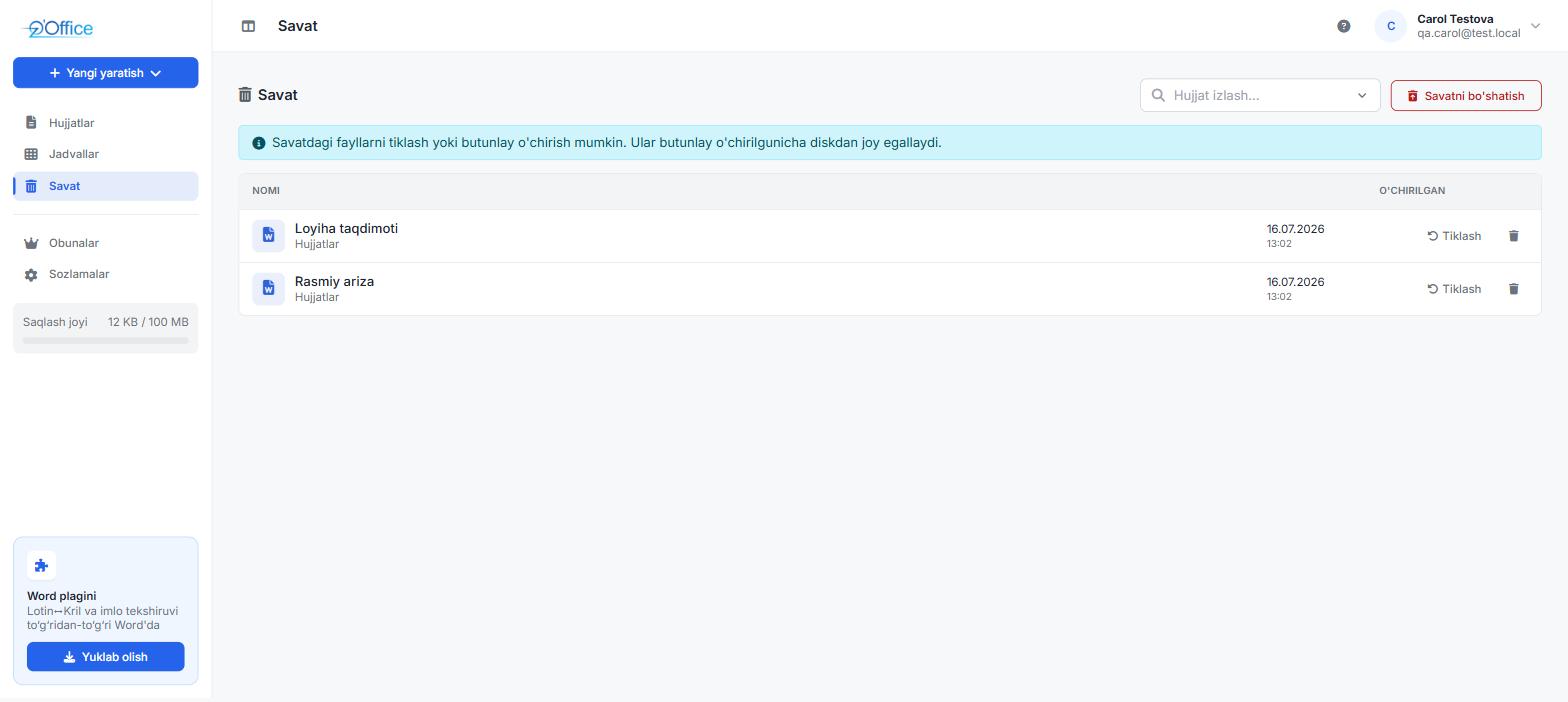
Restore a file
Click Restore next to the file. It returns to its section — Documents or Worksheets — with all its content. If the file was shared, the people you shared it with get their access back.
Delete permanently
Click the Delete permanently icon next to the file and confirm. The file is erased from the server along with its sharing settings.
This can't be undone
A permanently deleted file can't be recovered — not by you and not by support. If in doubt, download a copy first.
Empty the Trash
The Empty trash button at the top of the page permanently deletes everything in the Trash in one go. You'll be asked to confirm; this can't be undone either.
The Trash and your limits
- Storage
- Files in the Trash still take up space and count towards your storage.
- Number of files
- Files in the Trash do not count towards the document and spreadsheet limits.
So deleting a file immediately frees a slot for a new one, but to free up storage space you need to delete it permanently or empty the Trash.
Frequently asked questions
Are files in the Trash deleted automatically?
No. They stay in the Trash until you delete them permanently or empty the Trash.
Can I open a file while it is in the Trash?
No. Restore it first — then it opens as usual.
Can anyone else see my Trash?
No. The Trash only shows files you deleted, and only you can see it.