
 UzOffice PDF Studio
Everything for PDFs, in one app
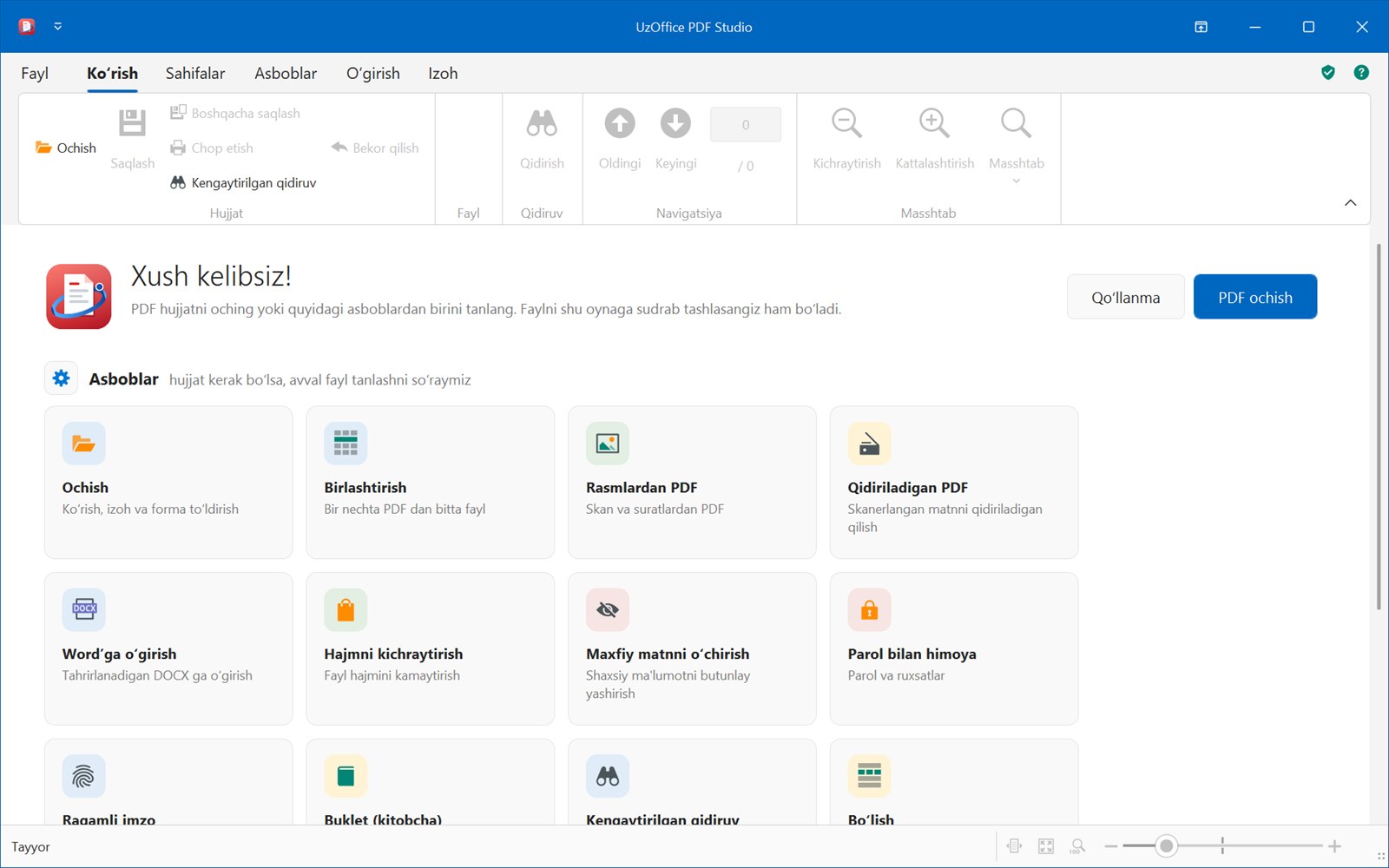
UzOffice PDF Studio is a PDF editor for Windows in Uzbek: view and annotate, manage pages, protect and sign, print, and turn scans into searchable PDFs or Word documents.

What you get
For everyday PDF work
View and annotate
- Page thumbnails, bookmarks and text search
- Comments and text highlighting
- Filling in PDF forms
- Folder search: find text across many PDFs (Ctrl+Shift+F)
Pages
- Rotate, delete, move up and down
- Extract, split and merge several PDFs
- Insert a file, a blank page or images
- Crop pages and add headers and footers
Protect and sign
- Password protection (AES-256) and removing it
- Digital signature with a certificate from the Windows store or a PFX file, with a visible signature field
- Redaction by text or pattern (e-mail, phone, passport, PINFL, card number) — the text is really removed from the file
Tools
- Watermarks and page numbers
- Reduce file size
- Document properties: title, author, subject
- Flatten comments into the page
Convert and recognise
- Images to PDF and PDF to images
- Export the text of a PDF
- Make a scanned PDF searchable (OCR)
- Convert to Word with tables, columns and formatting
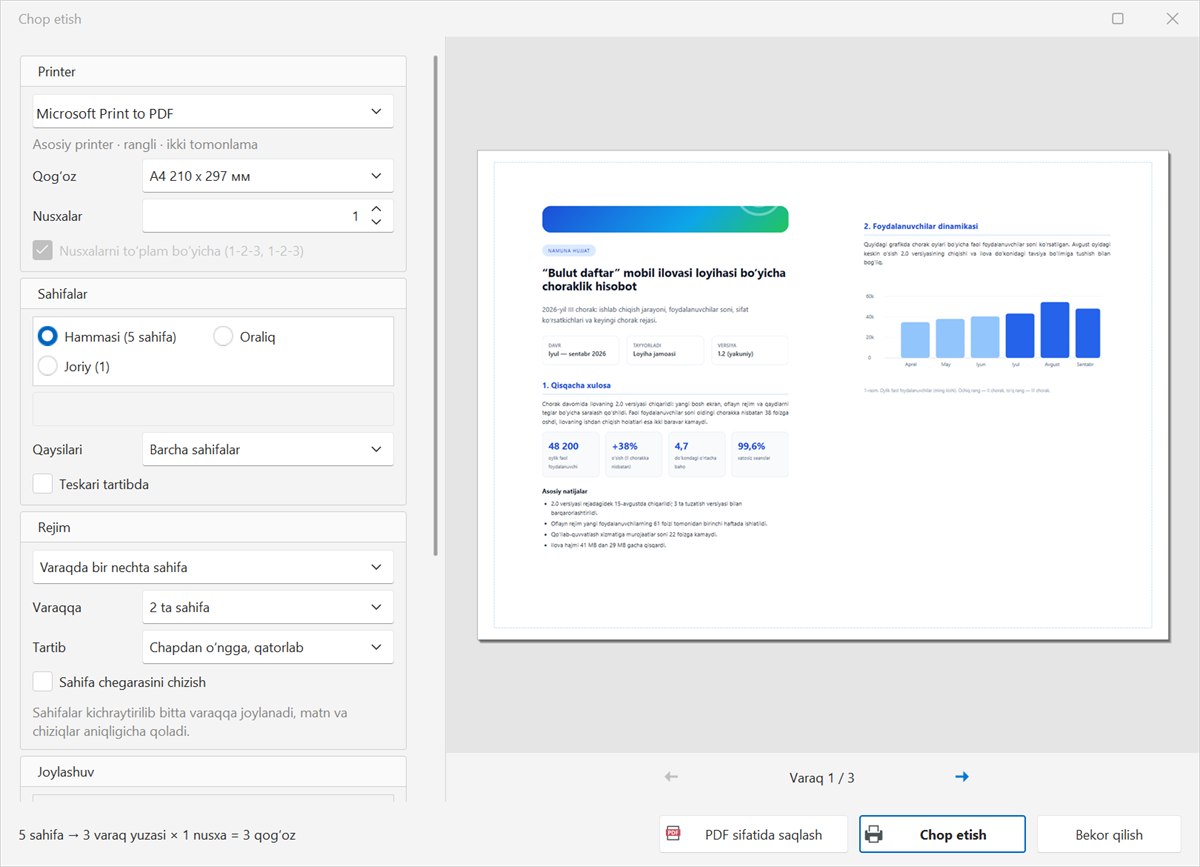
- Print dialog with a live preview of the sheet
- Booklets, several pages per sheet, posters
- Odd or even pages, reverse order, duplex, black and white
- Save the imposed layout as a PDF
Comfort
- Drop files on the window: a PDF opens, several PDFs merge, images become a PDF
- Undo, and recent files with search and pinning
- 44 keyboard shortcuts and a built-in guide (F1)
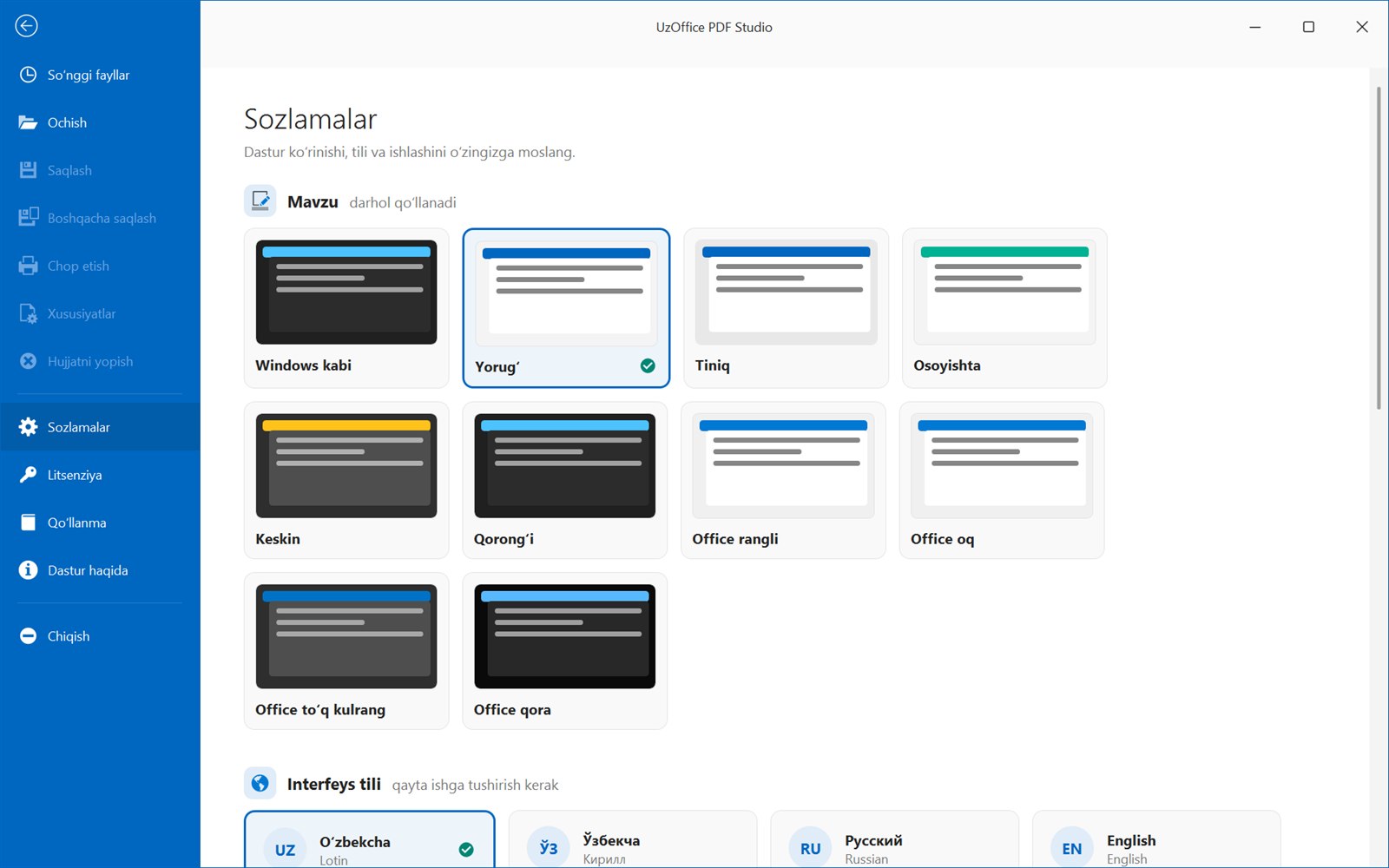
- Interface in Uzbek (Latin and Cyrillic), Russian and English; several colour themes
Screenshots
What the app looks like
Licence
One licence with the Office add-ins
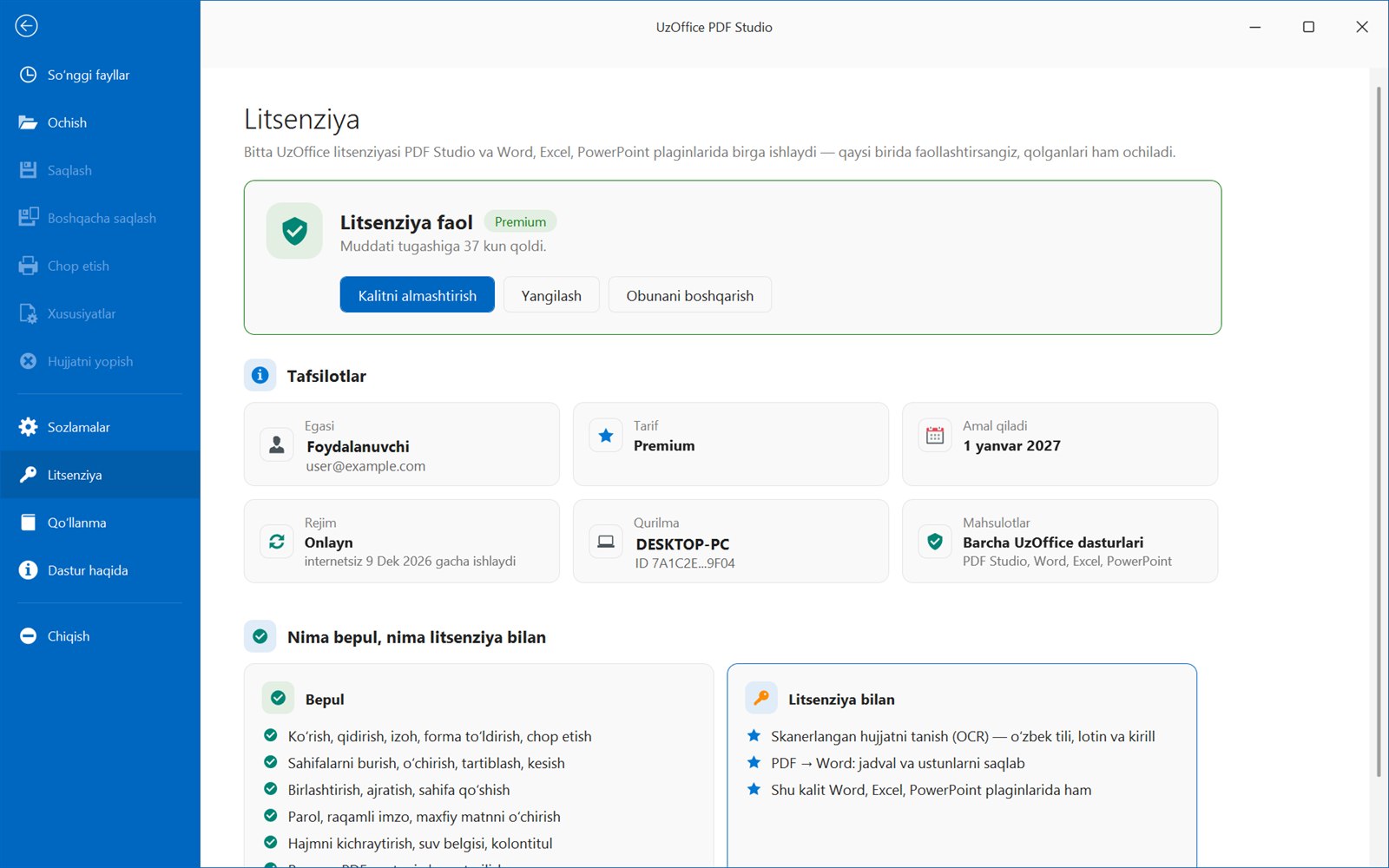
- A key activated in the Word, Excel or PowerPoint add-in works in PDF Studio too — no separate key needed.
- Viewing, page operations, protection and printing run on your computer, without the internet.
- Text recognition and conversion to Word run on the server: an active licence and internet are required, and pages count toward your plan’s limit.
Requirements and installation
- Windows 10 or 11, .NET Framework 4.8 (the installer checks it)
- Installs for the current user without admin rights, or for all users if you prefer
- Added to “Open with” for PDF files — your default app is not changed by force
- Separate installer: installing or removing the Office add-ins doesn’t affect it
FAQ
Frequently asked questions
Can I edit the text inside a PDF?
Existing text can’t be edited directly inside the PDF. Use “To Word” instead: the document becomes a Word file with the original layout, which you edit and save as PDF again.
Do I need a licence?
The licence is shared with the Word, Excel and PowerPoint add-ins: a key activated in any of them also works in PDF Studio. Text recognition and conversion to Word need an active licence and an internet connection.
Which systems does it run on?
Windows 10 and 11. Admin rights are not required. There are no macOS or mobile versions.
Are my files sent over the internet?
No, your files stay on your computer. Only when you choose text recognition or conversion to Word is the file sent to the UzOffice server for that job.
Where do I download it?
Use the “Download” button on this page. The app comes with its own installer and doesn’t depend on the Office add-ins.
Which interface languages are there?
Uzbek (Latin and Cyrillic), Russian and English. You change the language in Settings; it applies after the app restarts.